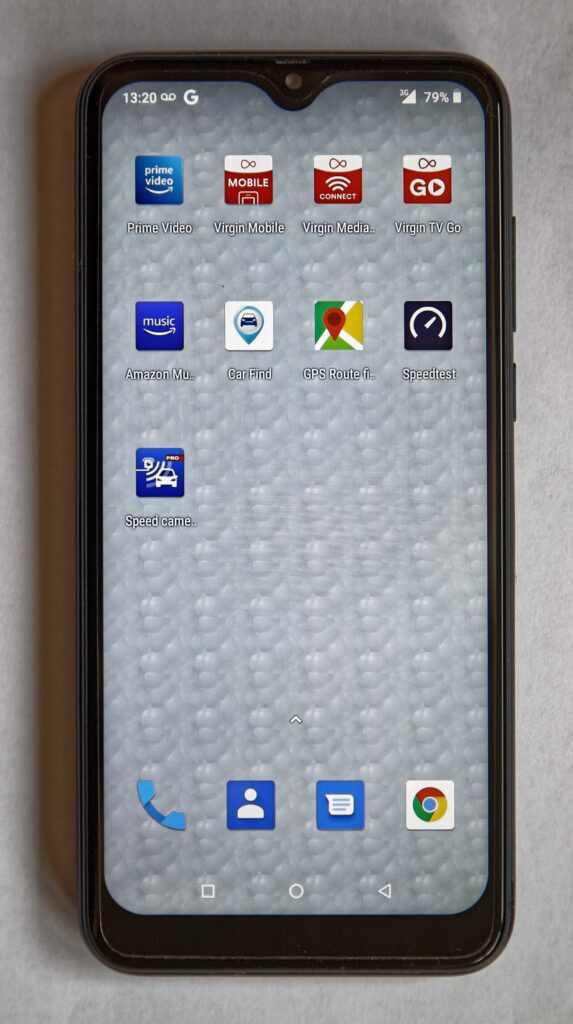
A three-year-old Android phone rarely slows down because of one broken thing. It slows down because free storage has dropped below ten percent, the launcher is animating every tap at full duration, and four apps you open twice a month hold wake locks around the clock. None of that requires a factory reset, and none of it requires root.
Do these in order and stop when the phone feels acceptable again. Every step below is reversible, and none of them touches your photos, messages or accounts.
Storage headroom comes first
Flash storage needs empty space to write efficiently. Once a 64 GB phone drops under roughly 6 GB free, Android spends more time shuffling blocks, apps get killed and relaunched, and the whole device feels two years older than it is. Check at Settings → Storage; the figure you want is at least 10–15 percent free.
The fastest recovery is usually photos. Open Google Photos, tap your account picture, then Free up space — it deletes local copies of anything already backed up, which on a typical phone is several gigabytes. Google’s support page on freeing up storage on Android lists the same categories, in case your phone menus are worded differently. Then clear the Downloads folder and check Settings → Apps sorted by size: WhatsApp media, Spotify offline albums and a game you stopped playing in March are the usual culprits.
Halve the animations in thirty seconds
This does not make the processor faster, but it removes the half-second of sliding that makes every tap feel slow. Open Settings → About phone, tap Build number seven times, enter your PIN, then go to System → Developer options and set Window animation scale, Transition animation scale and Animator duration scale to 0.5x.
Leave them at 0.5x rather than off. A few apps misbehave when animation duration is zero, and 0.5x already removes most of the perceived lag. While you are in that menu, switch off Mobile data always active, which keeps the cellular radio warm even on Wi-Fi.
Find the apps that keep the CPU awake
Open Settings → Battery → Battery usage and read the list by percentage rather than by screen time. A social app showing 22 percent with eighteen minutes of screen time is not being used, it is running in the background, and it is costing both battery and responsiveness. The Android battery saving checklist covers the same apps from the power side.
Long-press that app, open App info → Battery and choose Restricted. Do that only for apps that do not need to notify you — never for a messaging app, an alarm clock or a banking app with push approval. On Android 11 and later there is a bulk option under Battery → Background usage limits: put the long tail of rarely opened apps into Deep sleeping apps, where they cannot wake until you launch them.
Strip the home screen and the “cleaners”
Live wallpapers, five widgets that each poll a server, and animated icon packs all cost memory on a phone with 3 GB of RAM. Reducing the home screen to a dock plus one page of icons is worth more than any tuning app. So is uninstalling memory “boosters”: Android manages RAM itself, and a task killer that closes apps forces them to cold-start again, which is slower and uses more battery than leaving them cached.
For preinstalled carrier and manufacturer apps you cannot uninstall, open Settings → Apps → [app] → Disable. That removes them from the launcher and stops background updates without needing a third-party tool.
What no setting will fix
Two hardware limits sit underneath everything above. Phones from roughly 2018–2020 with 32 GB of eMMC storage and 2–3 GB of RAM are short of both space and memory before you install anything, and no amount of tuning creates either. A worn battery matters too: below about 80 percent of its original capacity, voltage sags under load, and the phone compensates by slowing the processor — which is why a phone that is fast at 80 percent charge crawls at 15 percent. A replacement cell costs far less than a new handset and often restores more speed than every software change combined. Heat accelerates that decline, so keeping the phone off a sunny dashboard or a charging pad in direct sun is part of the same fix — keeping a phone cool in hot weather explains the thermal limits.
If the phone is still slow after the animation scales and the deep-sleep list, run Settings → Storage once more and check whether system updates are sitting in a queued download you never installed. Half-finished updates on a nearly full device are a common cause of a phone that stutters for weeks and then settles down by itself.