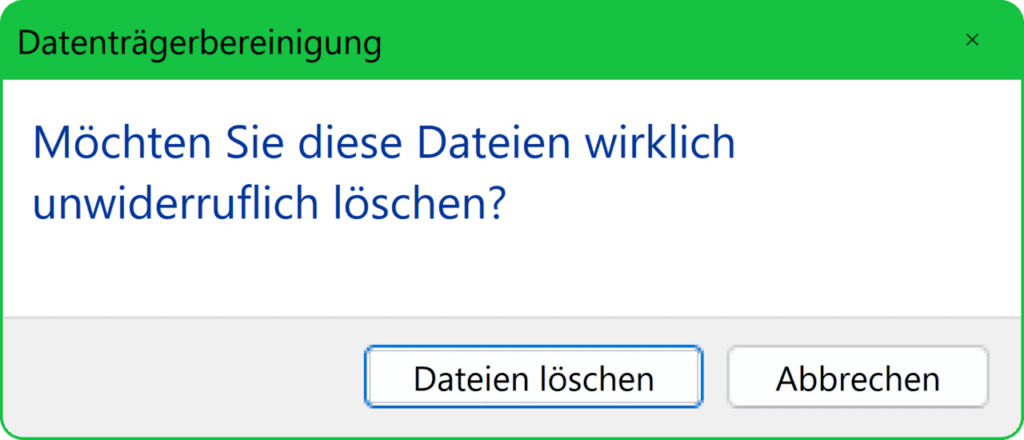
The Downloads folder is where files go to be forgotten. Windows puts every installer, invoice PDF, and holiday photo there by default, nothing ever removes them, and after two years it holds 20 GB of things you either already installed or never wanted. Cleaning it badly is worse than leaving it: people delete a folder called “setup” and lose the only copy of a scanned land deed.
The fix is not a purge. It is a sorting rule you can apply in one pass, plus a Windows setting that stops the pile rebuilding.
Sort by Date and Size, Not by Name
Open C:\Users\<yourname>\Downloads in File Explorer and switch the view to Details. Click the Date modified column, then Size. Sorting by name is useless here because downloads repeat: you will find five files called setup.exe, three called invoice.pdf, and a dozen with browser suffixes such as report (1).pdf and report (2).pdf.
Date modified tells you the truth about intent. Anything untouched for 90 days was not needed. Anything over 500 MB deserves a decision on its own, because that is where the space actually is: a Windows 11 ISO is about 5.4 GB, an NVIDIA driver package around 600 MB, and a single phone video can pass 1 GB.
Four Folders, One Decision Each
Create these inside Downloads and move rather than delete. _Keep holds documents you reference — tickets, receipts, contracts. _Installers holds setup files for software you still use. _Archive gets anything finished but worth keeping, zipped by year. _Delete is a holding pen that empties in a week, which removes the fear that makes people freeze.
Move with the mouse, not Ctrl+X, and let the progress bar finish before you close the window. If a file will not move because a program has it open, close the app first — a half-moved 2 GB archive is harder to recover than one you left alone.
For the archive, use right-click → Compress to ZIP file and rename the result with a date, for example 2025-receipts.zip. Then verify it opens before deleting the originals; a corrupt zip of the only copy is a loss dressed up as tidiness.
What Is Genuinely Safe to Delete
Several file types can go without opening them. Partial downloads ending in .crdownload or .part are incomplete and useless. Duplicates marked (1) or (2) are almost always the same file saved twice, though check the sizes match exactly before trusting that. Installers for software you have already installed and can download again are expendable, and so are extracted .zip files once the folder beside them exists.
Be careful with three categories. Bank statements, scanned IDs, and anything with a signature should be archived, not deleted, because reissuing them costs money and a trip. Driver packages for older hardware are often unavailable from the vendor today. And any folder whose name you do not recognise is worth opening before you touch it — that is usually where the important thing lives.
Set Storage Sense So It Does Not Rebuild
Windows can empty Downloads on a timer, and the setting is easy to miss because it is buried. Go to Settings → System → Storage → Storage Sense, turn it on, then open Configure cleanup schedules. Set Delete files in my Downloads folder that haven’t been opened for more than to 60 days, and set Recycle Bin to 30 days.
Understand the consequence before enabling it: the 60-day rule does not send files to the Recycle Bin, it deletes them outright, and it ignores subfolders. That is exactly why the four-folder structure above matters — moving anything you care about out of the root of Downloads is what makes the timer safe. Microsoft documents the behaviour on its Storage Sense page.
Run the manual version once a month if a timer feels risky: Settings → System → Storage → Temporary files, tick Downloads, review the total, then remove. It shows a size before acting, which is the one advantage it has over the automatic route.
Get the Big Stuff Off the System Drive
Downloads lives on C:, and that is the drive that fills first. Move finished archives to a secondary drive or an external one, and point the browser’s download location somewhere else if C: is small: in Chrome, Settings → Downloads → Location; in Edge, the same panel under Downloads; in Firefox, Settings → General → Save files to.
Before deleting a large archive you have copied elsewhere, confirm the copy is intact with certutil -hashfile "D:\Archive\2025-receipts.zip" SHA256 in Command Prompt, and run the same command on the original. Matching hashes mean the copy is real. For a broader sweep of what else is eating space, this storage cleanup guide covers the system folders, and the browser cache cleanup walkthrough handles the cache that Storage Sense leaves behind.