
A guest Wi-Fi network is one of the easiest router changes that protects your laptops, phones, printers, and smart-home gear when friends or contractors ask for internet access. The trick is to make it separate, simple, and limited enough that it never becomes a second unsafe main network.
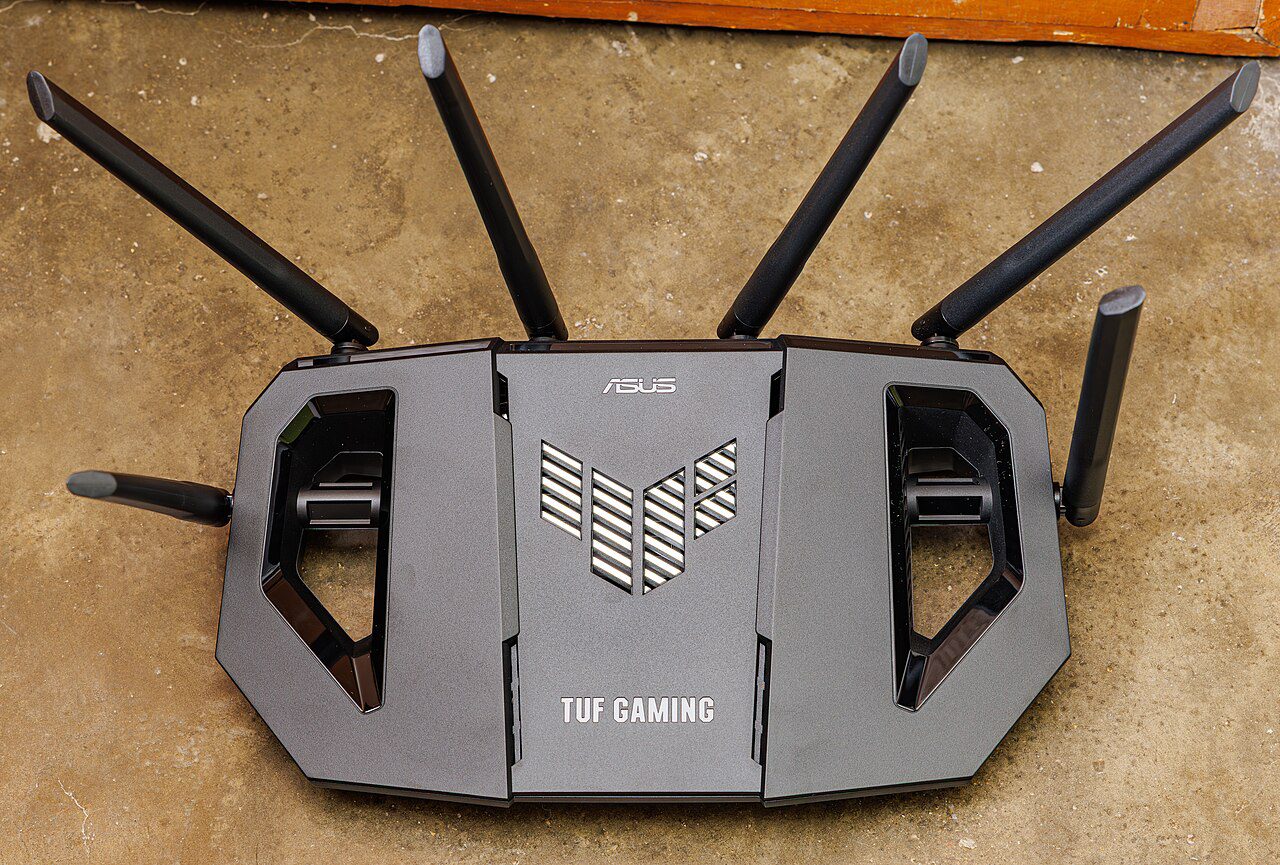
Guest Wi-Fi network basics to enable first
Open your router app or admin page and look for Guest Network, Guest Access, or SSID settings. Turn on one guest name for the band your visitors actually use, usually 2.4 GHz for better range or a combined guest network if your router handles band steering well.
Use WPA2 or WPA3 security, never an open network. Pick a password you can say out loud but that is not reused anywhere else, then save it in your password manager so you are not hunting through router screens later.
Keep guests away from your private devices
Disable any option called local network access, intranet access, LAN access, or allow guests to see each other. That setting is what stops a visitor phone from browsing your shared folders, casting to your TV by accident, or reaching a printer management page.
If your router offers client isolation, enable it for the guest Wi-Fi network. It is especially useful during parties because one infected or badly configured device cannot easily talk to every other visitor device.
Prevent the guest network from slowing everyone down
Set a sensible speed limit only if your router supports it cleanly. A cap such as 10 to 25 Mbps per guest is enough for messaging, browsing, and normal video, while leaving bandwidth for work calls and streaming on your main network.
Avoid creating multiple overlapping guest networks with similar names. Too many SSIDs make older routers spend more time broadcasting network information, and guests may connect to the weakest one. One clear guest name is easier and faster.
Quick checklist before you stop
Test from a phone that is not already trusted: connect to the guest Wi-Fi network, confirm the internet works, then try to find a printer or shared computer. If the internet works and local devices stay hidden, the setup is doing its job.
For more practical guides, visit the Tips & Tricks homepage and keep a short note of any setting you changed so it is easy to reverse later.