What a QR code can actually carry
A QR code is a printed box of text that your camera reads for you. What happens next depends on how that text begins. Four kinds turn up in daily life:
- A web address. This is the usual one on menus, posters and parking signs. It opens a page in your browser.
- A Wi-Fi join. The code holds a network name and password, and your phone offers to connect. Anyone can run a network, so avoid banking on one you do not know. If you share your own, secure your router before guests use Wi-Fi.
- A payment request. It may open a payment or banking app with a recipient and amount already filled in. Check both before you approve.
- A contact card or calendar event. It adds an entry to your address book or calendar, which can leave a fake “support” number among your real contacts.
Your phone usually asks before acting, but the prompt is easy to tap through. Scanning alone does not normally install anything. The risk is the next tap.
Preview the destination before you open it
On an iPhone, open the Camera app and hold it steady on the code. A yellow label appears near the bottom showing the site name. Press and hold that label and iOS shows the full address with options such as Open in Safari and Copy, so you can read it without loading the page. If nothing appears, check that Settings > Camera > Scan QR Codes is switched on.
On Android, behaviour depends on the maker. Pixel phones and many others show a small chip with the link when the camera or Google Lens recognises a code. On Samsung phones, open Camera > Settings and make sure Scan QR codes is on, then read the link in the pop-up before tapping it. If your phone has no built-in scanner, use Google Lens in the Google app rather than a random scanner app.
When you read the address, find the first single slash. The name just before it is the real site. An address like parking.example.com/pay belongs to example.com. One like example.com.pay-help.top/pay belongs to pay-help.top, however familiar the start looks. Be wary of shortened links and of names that do not match the business on the sign. If the link tells you nothing, close it.
Stickers over the real code
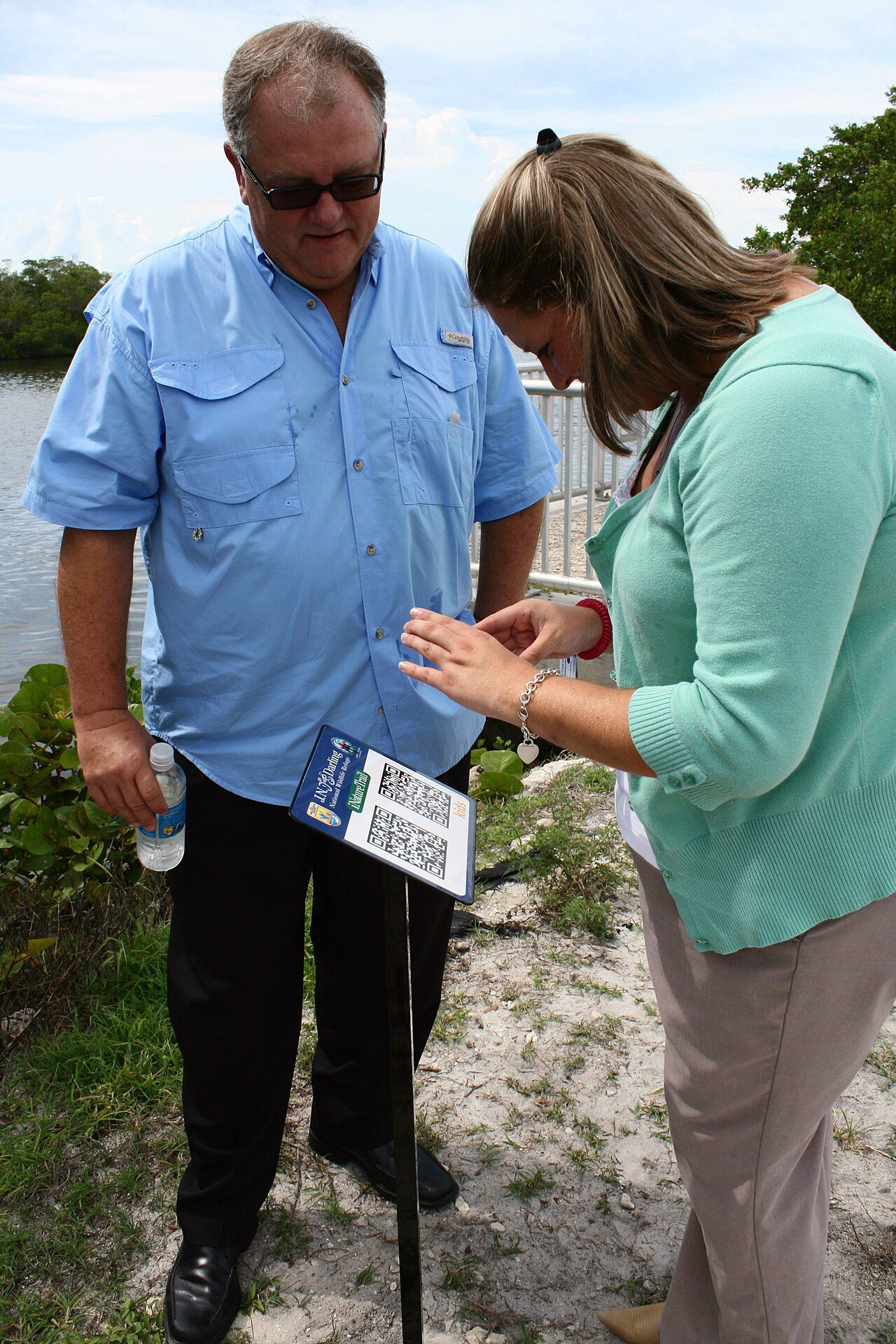
A common trick needs no technology. Someone prints their own code and sticks it over the genuine one on a parking meter, an EV charger or a restaurant table card. The page looks like the operator’s payment form, but the money goes elsewhere.
Before you scan a code in public, look at the surface:
- Run a fingernail along the edge. A sticker often has a lifting corner or a slight ridge.
- Look for a different finish, such as glossy paper on a matte sign, or a code that is crooked or does not line up with the printing around it.
- Check whether the code hides a logo, bay number or location ID that the rest of the sign shows.
- After scanning, compare the page with the sign. The operator name and the bay or table number should match.
At a meter, you can skip the code altogether by typing the operator’s name into your app store and paying in the official app, or by using the card or phone number printed on the machine. In a restaurant, ask for a paper menu or order at the counter. A menu page that demands card details before you have chosen anything, or pushes an app download, is a reason to walk away.
If you already scanned something bad
What you do depends on how far it went, so work out which of these applies.
- You only opened the page. Close the tab and carry on. Nothing else is usually needed.
- You typed a password. Open the real site by typing its address yourself, change the password, and turn on two-factor authentication. If you reused that password elsewhere, change it there too. A family password manager makes unique passwords much less of a chore.
- You entered card details or paid. Call your bank using the number on the back of your card, explain what happened, and ask about blocking the card and disputing the payment. Check your statement over the next few weeks.
- You installed an app. On iPhone, press and hold the icon and choose Remove App. On Android, go to Settings > Apps, select it and tap Uninstall, then open Play Store > your profile picture > Play Protect > Scan.
- You joined a Wi-Fi network. On iPhone, go to Settings > Wi-Fi, tap the i beside the network and choose Forget This Network. On Android, go to Settings > Network & internet > Internet, tap the gear beside it and choose Forget.
Take a screenshot of the sticker or page, and tell the business whose sign it was, because they can remove it before the next person pays. The UK’s National Cyber Security Centre has practical advice on staying secure online, including what to do when an account may be compromised.