You shot a video at a birthday party, and now it needs to live on your computer. Simple job, right? Then the cable does nothing, the cloud upload crawls, and you end up emailing yourself a file that bounces for being too big. Here is the honest, tested way to transfer files from phone to PC without the guesswork, whichever phone and computer you own.

Why the cable method fails (and how to fix it in 20 seconds)
Most people plug in a USB cable, see nothing happen, and give up. Two things are usually wrong. First, the cable itself: a lot of cables shipped with chargers and power banks carry power only, with no data wires inside. They will charge a phone forever and never show a single file. If a cable came free with a battery pack, assume it is charge-only until proven otherwise.
Second, the phone has to give permission. On Android, plug in, then pull down the notification shade and tap the entry that says something like Charging this device via USB. Change it to File transfer or MTP. The phone now appears in File Explorer as a drive. On iPhone with Windows, the phone shows up as a camera device holding your photos and videos, and you drag them out of the DCIM folders. Tap Trust on the phone when prompted, or Windows sees nothing.
Two practical notes. Copy files out of DCIM rather than cutting them, so a failed transfer never destroys the only copy. And if you have thousands of photos, move them in batches of a few hundred; huge single operations stall far more often.
Wireless ways to transfer files from phone to PC
Cables are fastest for bulk video. For everything else, wireless is less hassle.
Cloud sync is the set-and-forget option. Google Photos, iCloud Photos, OneDrive and Dropbox all have phone apps that upload in the background, then the same files appear on your computer. The tradeoff is storage limits and upload speed. If your home upload is 10 Mbps, a 4 GB video takes roughly an hour, so start it and walk away.
Nearby Share / Quick Share (Android to Windows) and AirDrop (iPhone to Mac) move files directly over Wi-Fi Direct without touching the internet. That makes them dramatically faster than cloud for a handful of big files. Windows users need the free Quick Share app from Google installed once.
Phone Link is built into Windows 11 and pulls recent photos off an Android phone automatically. It is excellent for screenshots and quick shots, less good for whole-library moves.
A local web transfer such as Snapdrop-style browser tools works when nothing else does, including phone-to-someone-else’s-laptop. Both devices open the same page on the same Wi-Fi and drag files across. Avoid these for anything sensitive.
The flash drive trick most people forget
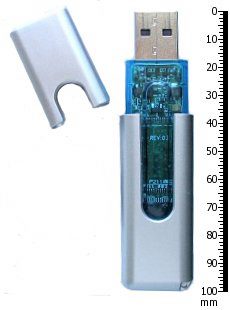
A cheap USB-C flash drive, or a USB-C to USB-A adapter with a normal stick, turns any modern Android phone and most recent iPhones into a device you can copy files off directly. Plug it in, open the Files app, select, copy, done. No accounts, no Wi-Fi, no upload wait. For moving 30 GB of holiday video, this is still the fastest method available, and the drive costs less than a takeaway meal.
It also solves the awkward case where the computer is not yours. You never sign in to anything, and you take the drive with you.
Picking the right method for the job
Use this quick rule. One or two photos: Quick Share, AirDrop, or a messaging app to yourself. A folder of documents: cloud sync, because you probably want them backed up anyway. Several gigabytes of video: cable or flash drive, every time. An entire phone’s worth of data before you sell the handset: cable, and verify the copy before you erase anything.
Whatever you choose, check the destination folder afterwards. Open two or three files and confirm they actually play or open. Transfers can complete and still produce zero-byte duds, and you will not notice until the original is gone. Microsoft’s own Windows support pages are worth a look if File Explorer refuses to show the device at all, and Google keeps a plain-language guide to Android USB transfer options.
Keep the copies tidy afterwards
The real problem is rarely the transfer. It is ending up with the same 900 photos in four folders across two drives. Create one dated folder per import, such as 2026-08 Phone Import, dump everything there, then sort at your own pace. Delete from the phone only after you have a second copy somewhere else.
Once you know how to transfer files from phone to PC reliably, the rest of your digital housekeeping gets easier. For more practical walkthroughs like this, browse the guides on the Tips & Tricks homepage or read our companion piece on how to back up your phone properly and free up Windows storage before the import.