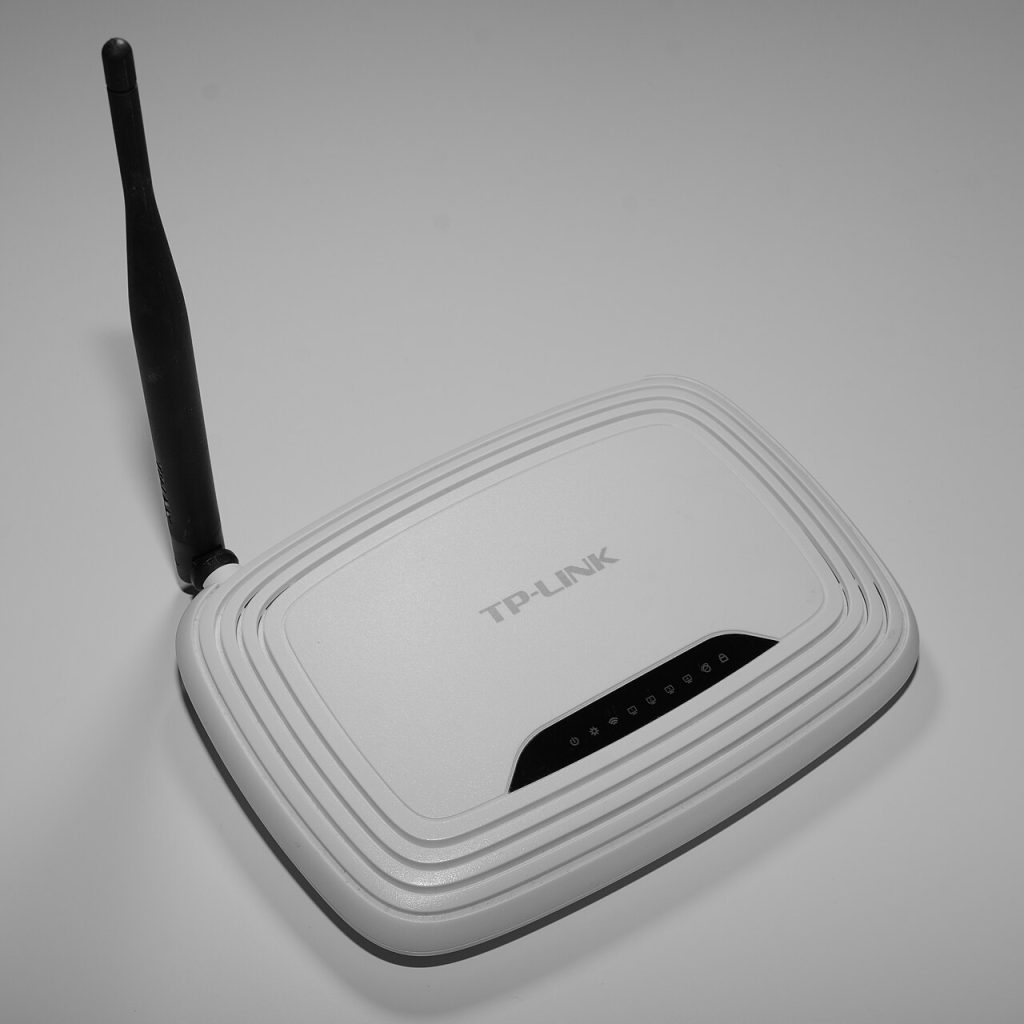
Most homes have one old router in a drawer. It is usually slower than the current one, so it feels useless — but it can still do one job very well: turning a dead Wi-Fi corner into a usable one. Using an old router as access point is the cheapest way to extend coverage without buying a mesh system or a repeater.
This guide walks through the decision, the wiring, the settings, and the mistakes that make people give up halfway.
Is your old router worth reusing?
Check three things before you start:
- It must support 5 GHz or at least 802.11n. A 2.4 GHz-only router from 2010 will add coverage but drag every device down to slow speeds.
- It must have an Ethernet port you can use as LAN input. All home routers do.
- It must be able to run in access point or bridge mode — or at minimum let you disable DHCP. Nearly every router from the last fifteen years can.
If the old unit has a failing power adapter or drops connections when warm, stop here. A broken router on your network causes more problems than weak Wi-Fi.
How an access point differs from a repeater
A repeater copies your Wi-Fi signal over the air and rebroadcasts it, which halves throughput on that band and adds latency. An access point is connected to your main router by a cable, so it delivers full speed. If you can run a cable — even along a corridor, under a door, or through an existing conduit — always prefer the cable. In a concrete building, that single cable is worth more than any signal-boosting gadget.
If a cable is genuinely impossible, a powerline adapter or a mesh node is a better fallback than a wireless repeater. Everything in this guide assumes you can run one Ethernet cable to the new location.
Step-by-step: set up the old router as an access point
1. Find the old router’s admin address
Look at the sticker on the bottom for the IP address, admin username, and password. Connect a laptop to one of its LAN ports by cable — not over Wi-Fi — for the setup.
2. Change the LAN IP address first
Your main router probably uses 192.168.0.1 or 192.168.1.1. Give the old router a free address on the same subnet, such as 192.168.1.2, so you can still reach its settings page later. Do this before anything else, or you will lock yourself out.
3. Turn off DHCP on the old router
The main router must remain the only device handing out IP addresses. Two DHCP servers on one network cause random disconnects that are painful to diagnose.
4. Set the Wi-Fi name and password
Use the same network name (SSID) and password as your main network if you want devices to roam between them. Use a different name if you want to control which devices connect where. Both approaches work; the same-name setup feels seamless but can leave phones clinging to a weak signal.
5. Pick a clean channel
On 2.4 GHz, use channels 1, 6, or 11 and set the old router to a different one from the main router. On 5 GHz, keep the two units on different channels too. Overlapping channels on two access points in the same building is a common cause of “the Wi-Fi got worse after I added a second router”.
6. Connect the cable correctly
Run the cable from a LAN port on the main router to a LAN port on the old router — never into its WAN or Internet port. This is the single most common mistake. The WAN port expects to be the outside world and will double-NAT your network.
7. Test, then place it well
Connect a phone near the new access point and run a speed test. Then move the unit: high up, in the open, away from metal cabinets, mirrors, and microwave ovens. Placement usually matters more than the router model.
Settings worth changing on the reused router
- Firmware: update it before putting the device into service. Old routers often have years of unpatched security fixes available.
- Admin password: change it from the default. An access point on your LAN with a default login is an open door.
- WPS: turn it off. It is convenient and insecure.
- Remote management: disable it unless you genuinely need it.
- Guest network: off on the second unit unless you need it; two guest networks on one LAN is confusing.
If the stock firmware is limited, an open-source firmware such as OpenWrt’s dumb access point setup gives you far better control — but only install it if the model is supported and you are comfortable recovering a bricked device.
Common mistakes and how to avoid them
- Cable in the WAN port. Symptom: devices on the second router get internet but cannot see printers or the main router’s admin page.
- DHCP left on. Symptom: random devices get an address from the wrong router and lose connectivity after a reboot.
- Same channel as the main router. Symptom: both networks slow down in the coverage overlap.
- Old WPA or WEP security. Symptom: modern phones refuse to connect, or connect without warning you that the network is insecure.
- Placing it in the dead zone itself. An access point needs a good cable feed and reasonable placement — it does not need to sit where the signal was worst, only where coverage should extend to.
Done properly, a reused router turns one weak corner into a full-speed zone for the price of a cable. If you would rather fix the main router first, our guide to making an old router faster and safer covers firmware, channels, and security in more depth, and router placement is worth reading before you drill any holes.