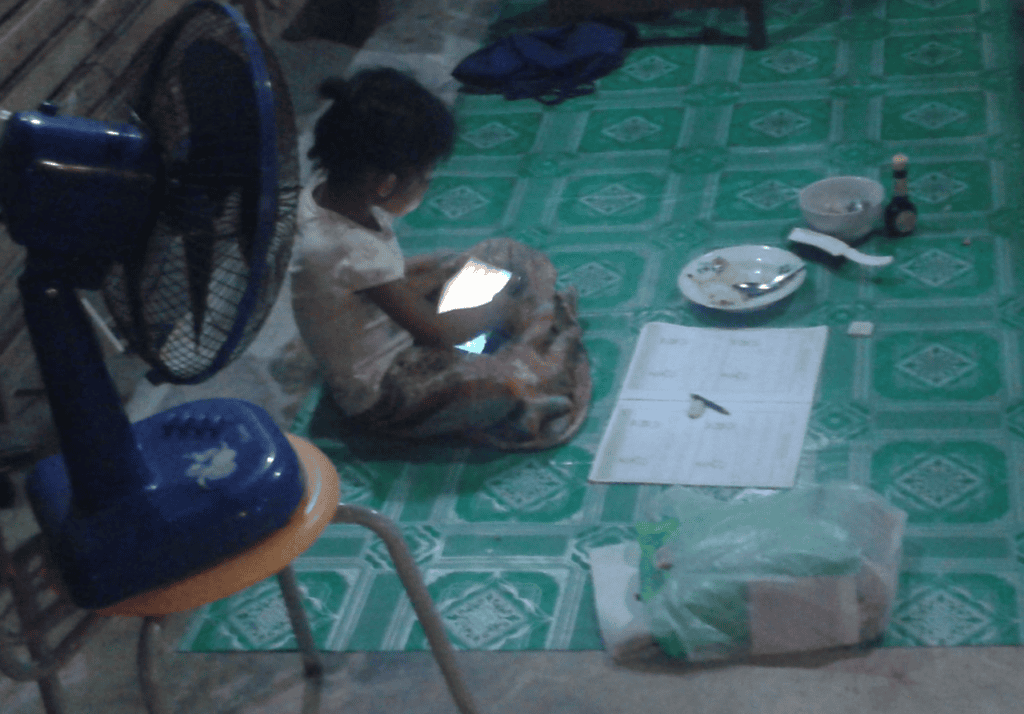
kids tablet privacy settings is easier when you use a simple checklist instead of trying to fix everything at once. These steps are practical, low-risk, and designed for normal homes rather than perfect lab conditions.
Start with a child account
A child profile is easier to manage than handing over your own account. It keeps purchases, browsing history, app installs, and location sharing under rules you can review.
Kids tablet privacy settings for apps
Check camera, microphone, contacts, photos, and location permissions. Games rarely need contacts. Drawing apps rarely need precise location. If an app will not work without odd permissions, choose another app.
Control purchases and downloads
Require approval for installs and in-app purchases. Turn off one-tap buying, remove saved cards from shared devices, and teach kids to ask before tapping pop-ups that promise coins, boosts, or free trials.
Make review a habit, not a lecture
Review settings together every month. Explain why a permission matters in plain language. The goal is not fear; it is helping kids notice when an app asks for more access than it needs.
Final check
Spend ten minutes applying the first step today, then set a reminder to review it again next month. Small maintenance habits prevent bigger problems and usually save more time than a rushed emergency fix.
For more practical guides, visit the Tips & Tricks homepage and bookmark the tips that fit your devices.