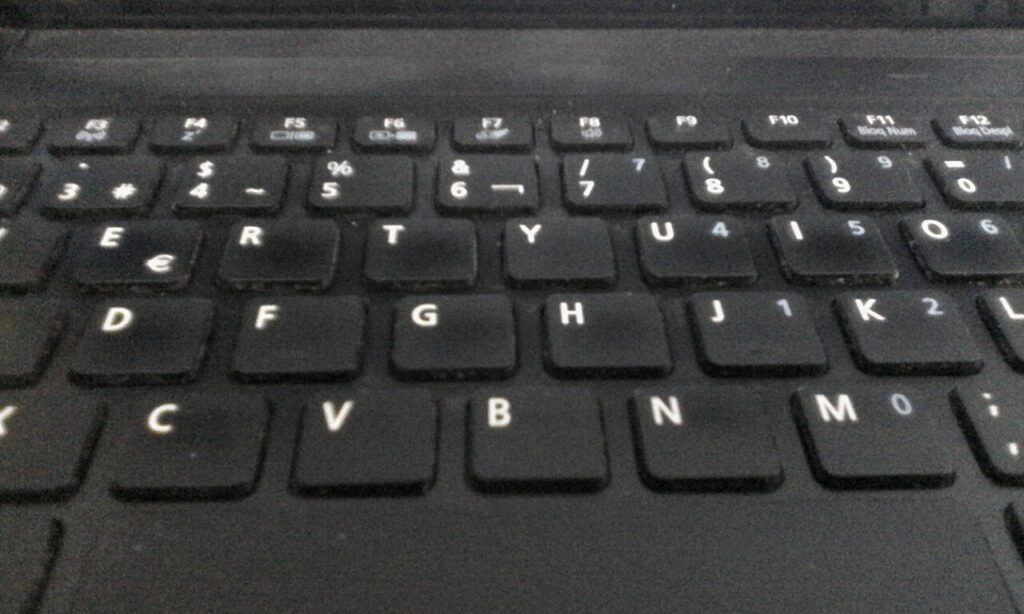
Learning to clean your laptop safely is one of those small maintenance jobs that pays for itself. Dust is not just ugly — it insulates the heatsink, the fan spins harder, the CPU throttles, and the machine you paid good money for starts feeling three years older than it is. Fifteen minutes twice a year genuinely extends its life.

What you need before you clean your laptop safely
Nothing exotic. Two microfibre cloths, a can of compressed air or a hand blower, isopropyl alcohol at 70% or higher, cotton swabs, and a small soft brush. That is the whole list.
What you must not use: paper towels (they scratch coatings and shed fibres), window cleaner or anything with ammonia (it eats anti-glare layers), a vacuum cleaner held against the vents (static risk, and the impeller can be spun past its rated speed), and water applied directly to anything.
Shut the laptop down completely — not sleep. Unplug it. If the battery is removable, take it out. Give it ten minutes to cool if it has been running.
The screen: less is more
Start dry. A folded microfibre cloth in slow circles removes most of what you see. For fingerprints that resist, dampen a corner of the cloth with a 50/50 mix of distilled water and isopropyl alcohol — damp, not wet, and never sprayed onto the panel itself. Liquid wicks into the bezel and that is how a screen dies.
Work in one direction rather than scrubbing, and support the back of the lid with your other hand so you are not flexing the panel. Matte and anti-glare screens are more fragile than they look; heavy pressure permanently marks the coating.
Keyboard, trackpad and the grime you can actually feel
Tilt the laptop to about 75 degrees, screen away from you, and use short bursts of compressed air across the keys in rows. Keep the can upright and about 10cm away — tipping it sprays freezing propellant onto the board.
For the shine on well-used keys, a cotton swab lightly wet with isopropyl and rolled (not dragged) over each keycap lifts the oil. Alcohol at 70%+ evaporates in seconds, which is exactly why it is the right choice around electronics. Do the trackpad the same way; it collects more skin oil than anything else on the machine.
Do not pull keycaps off a laptop unless you have looked up your specific model. Laptop scissor mechanisms are tiny, brittle, and unlike a desktop keyboard they very often do not clip back in.
Vents and fans — where the real performance sits
Find the intake vents (usually the underside) and the exhaust (usually a side or the rear hinge). Blow air into the exhaust so dust exits the way it came in, rather than pushing the clog deeper.
Hold the fan blades still with a toothpick or cotton swab while you blow. A fan spun by compressed air can generate a voltage back through its motor, and that is a genuine, documented way to kill a fan controller. If the vents are packed with a felt-like mat of dust — common in homes with pets — air alone will not clear it and you need to open the bottom panel. That is straightforward on most business laptops and fiddly on ultrabooks; look up an iFixit teardown for your exact model first, and check your warranty terms before removing screws.
The outside, ports and the once-a-year jobs
- Chassis: microfibre with a little isopropyl. Avoid rubberised palm rests soaking up liquid — they go tacky permanently.
- Ports: dry compressed air only, or a wooden toothpick for packed lint in a USB-C port. Never metal.
- Charger: wipe the brick and check the cable near both ends for kinks. That is where they fail.
- Feet: clean the rubber pads. If one has fallen off, replace it — a laptop sitting flat on a desk chokes its own intake.
Twice a year is a sensible baseline. Once a quarter if you have pets, smoke in the house, or work somewhere dusty. You will notice it most as a quieter fan and a cooler palm rest.
How to tell it worked
Run something demanding for ten minutes and listen. A machine that previously ramped to full fan speed and stayed there should now cycle up and back down. If temperatures are still high after a thorough clean, the thermal paste under the heatsink has likely dried out — a different job, and one worth paying a technician for if the laptop is out of warranty.
Do this properly and you will clean your laptop safely for years without ever handing it to a repair shop. If you want to squeeze more life out of the machine, our guide on habits that add years to a laptop pairs well with this, and there is plenty more practical maintenance advice on the Tips & Tricks homepage.