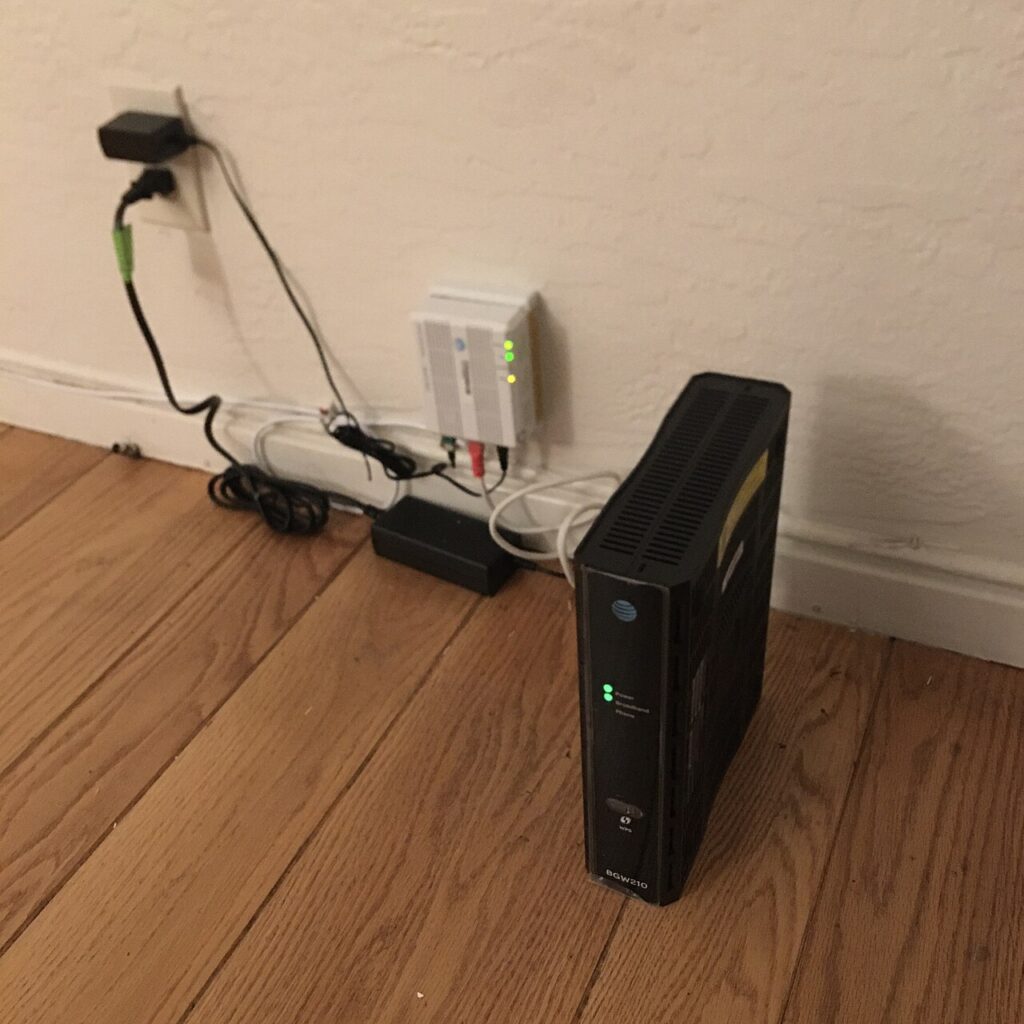
Create a strong Wi-Fi guest network once, and you solve a problem that keeps coming back: visitors need internet, but you do not really want every phone, tablet, and mystery laptop on the same network as your main devices. Your smart TV is one thing. Your work laptop, NAS, baby monitor, and home printer are another. A guest network keeps those worlds apart with very little effort.
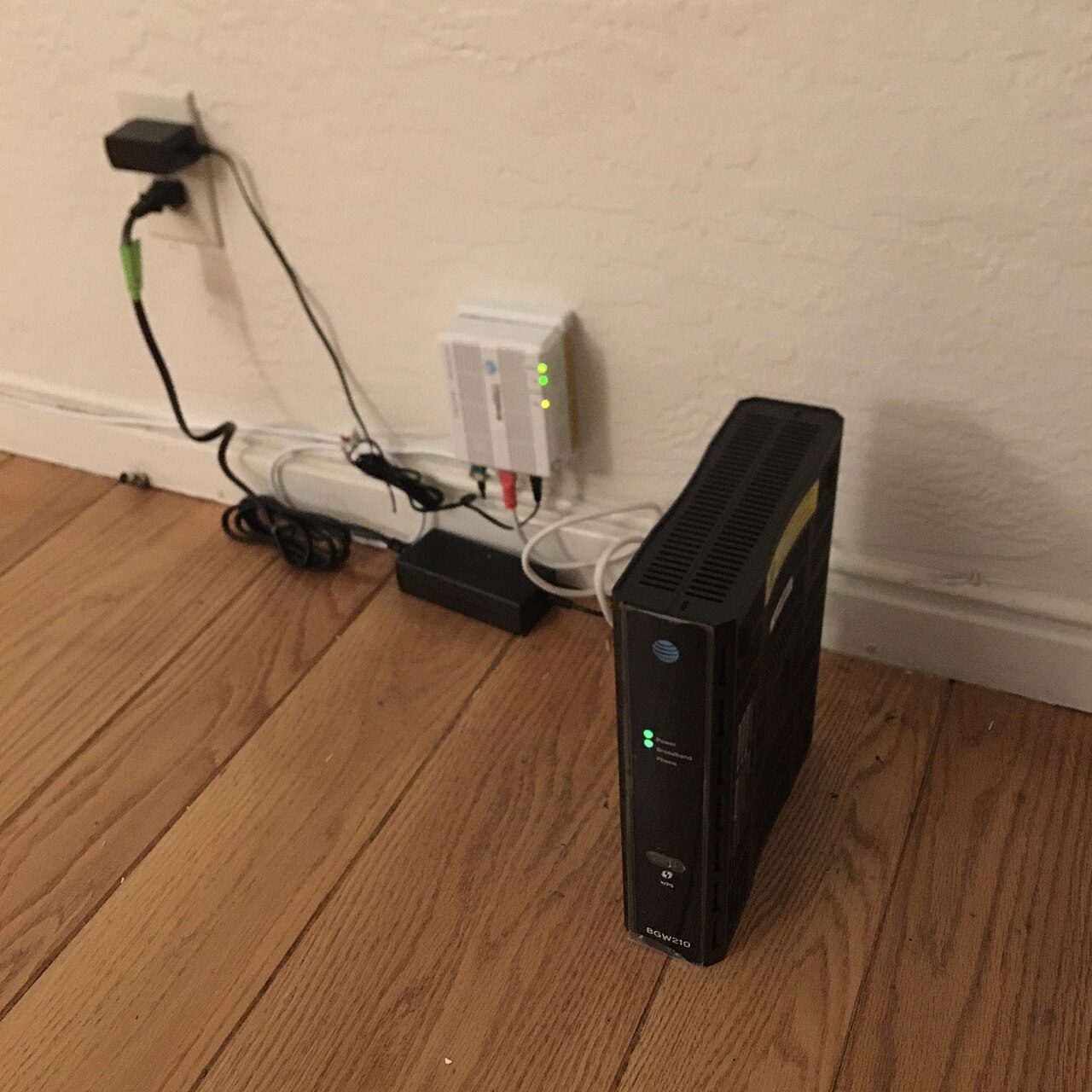
Good routers make this easy, yet lots of people never turn it on. They keep handing out the main Wi-Fi password, then forget who has it. Months later, old devices still reconnect automatically. That is messy from both a security and troubleshooting point of view.
Create a Strong Wi-Fi Guest Network With a Clear Purpose
The goal is simple: let guests reach the internet without giving them a direct path to your main devices. In many routers, the guest network can block access to your local network while still letting visitors browse, stream, and message normally. That one checkbox is worth using.
Before you start, log in to your router from the official app or admin page. If you have never changed the admin password, do that first. A guest network helps, but it does not fix a router that still uses default credentials. CISA’s router and device security advice is a good baseline, and Consumer Reports has solid tips on securing home routers.
Pick Better Settings Than the Default Suggestion
Most routers offer a quick guest setup, but it is worth checking the details. Use WPA2 or WPA3 security, not an open guest network. Pick a password that is easy to read aloud but hard to guess. A phrase like TeaLampRiver87 works better than guest12345.
Give the network a clear name too. Something like HomeGuest or FamilyGuest is better than using your surname or apartment number. If your router allows it, turn on guest isolation or “allow internet only” access. That keeps guest devices from browsing your shared folders, printers, or cameras.
Some routers also let you schedule the guest network. That is handy if you host people often but do not want the extra network running all the time. It is not essential, though. The big wins are strong security, device isolation, and a password you can rotate when needed.
Think About Smart Devices and Temporary Access
A guest network is not only for actual human guests. It can also be a safer place for devices you do not fully trust, such as cheap smart plugs, older tablets, or gadgets that only need internet access. Keeping them off the main network reduces how much damage a weak device password can do.
If your home has several smart gadgets already, pair this setup with the habits in our guide to smart home security tips that make sense. The two topics fit together naturally: isolate questionable devices, update the ones you keep, and do not let convenience turn into blind trust.
Test It Before You Forget About It
After the guest network is live, connect one phone to it and test three things. First, confirm the internet works normally. Second, see whether you can reach devices on your main network. Ideally, you should not. Third, reconnect one day later to make sure the password and settings stuck after the router settled down.
It is also smart to label the password somewhere you control, such as a password manager note or a secure home note. That way you are not reusing the main Wi-Fi password just because you forgot the guest one. If your signal feels weak in certain rooms, our router placement tips can help before you spend money on new hardware.
Why This Tiny Setup Change Pays Off
Once you create a strong Wi-Fi guest network, sharing internet becomes routine instead of a judgment call every time someone visits. You stop exposing your core devices unnecessarily, you keep your main password more private, and you make future cleanup easier if you ever need to rotate access.
That is a lot of benefit for one small router setting. For more practical tech housekeeping like this, check the tips-tricks.net homepage and build a short list of home-network fixes you can actually maintain.