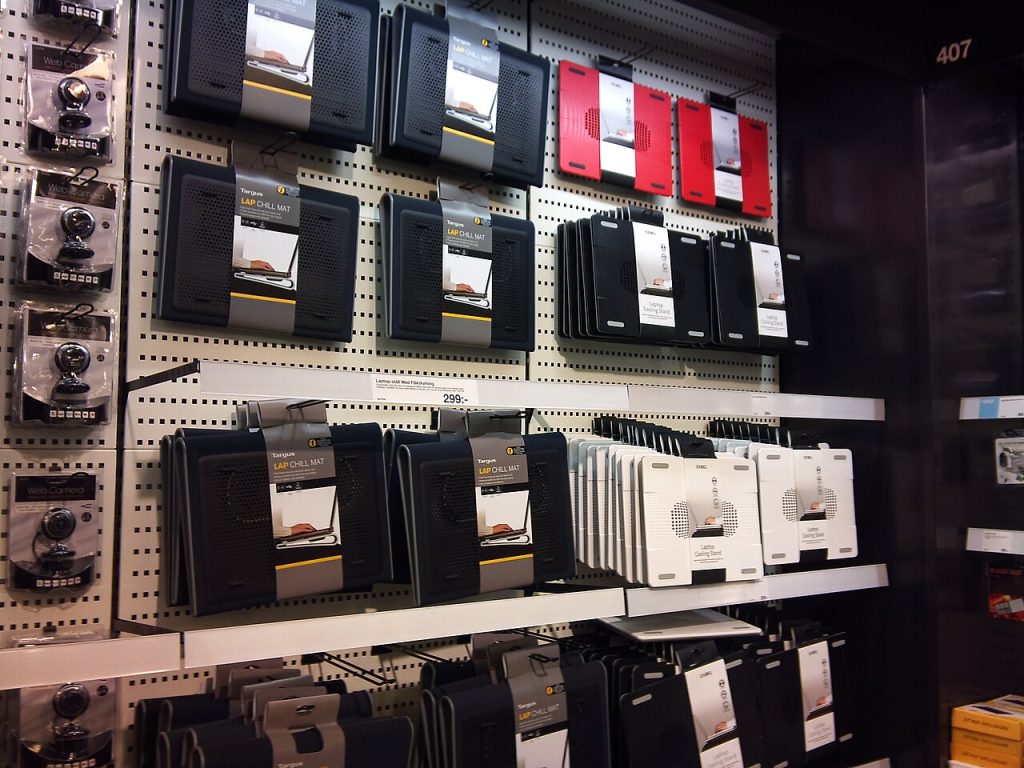
A laptop that runs hot slows itself down, spins its fan constantly, and slowly cooks its own battery. Before you buy a new machine, try a laptop cooling pad. The catch is that half the pads on the market barely move air. Here is how to pick one that genuinely drops temperatures, and how to use it properly.
What a laptop cooling pad can and cannot fix
A pad helps when the laptop’s own vents are starved of air, which is common when you work on a bed, a sofa, or a desk pressed against a wall. It cannot fix a clogged internal heatsink, dried thermal paste, or a fan that has stopped spinning.
So start with the cheap checks. If the fan is loud but the air coming out is weak, the vents are blocked with dust and no pad will help until it is cleaned.
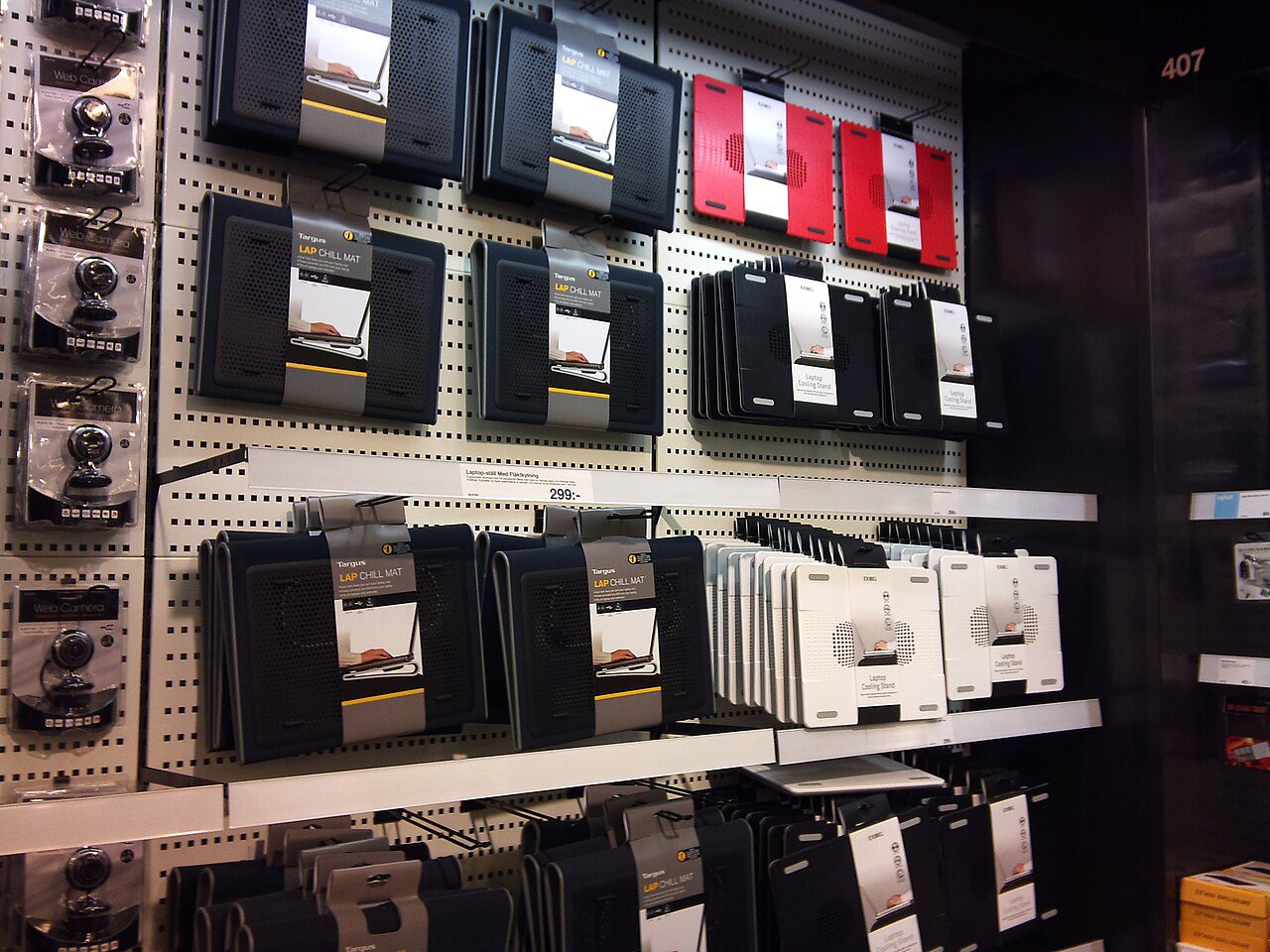
Match the laptop cooling pad to your vents
Cooling pads work by blowing air at the underside of the laptop. That only helps if the intake vents are actually on the bottom. Many modern thin laptops draw air through a rear hinge or side grilles instead, and a bottom fan does almost nothing for them. Check your laptop’s underside first: if you can feel warm air being pulled in or pushed out at the back, a simple stand that raises the rear edge will often beat a fan pad.
Fan size, airflow and noise: what the specs mean
- One large fan usually beats five tiny ones: fewer, bigger blades move more air at lower noise.
- RPM is not airflow. A 1,200 RPM 140mm fan can outperform a 2,500 RPM 80mm fan quietly.
- Under 30 dB is the realistic target if you take calls or record audio all day.
- USB pass-through matters: a pad that eats your only USB-A port is a bad trade.
- Height adjustment improves typing angle and raises the rear vents at the same time.
Ignore RGB lighting as a value factor. It adds cost and power draw without moving a single extra cubic metre of air.
How to measure whether it actually works
Do not judge by feel. Install a temperature monitor, note the CPU temperature after ten minutes of the same workload without the pad, then repeat with the pad on. A useful pad drops sustained temperatures by 4 to 8 degrees Celsius. Under 3 degrees, it is just a plastic stand and you should return it.
Also watch clock speed, not just temperature. If the CPU stops throttling and stays at its boost clock, the pad is doing its job even if the temperature reading barely moves.
Position and maintenance
- Place the pad on a hard, flat surface; fabric blocks the pad’s own intakes.
- Line the pad’s fans up with the laptop’s vent grilles, not the middle of the chassis.
- Keep at least 5cm of clearance behind the exhaust.
- Clean the pad’s fan filters and the laptop’s vents every few months.
- Unplug the pad when the laptop is idle to save a little power.
For general hardware guidance, Intel publishes processor thermal specifications that explain why sustained heat reduces performance. Cooling is not cosmetic; it is the difference between a laptop that feels fast for two years and one that feels slow after six months.
When a cooling pad is the wrong purchase
If the laptop is over five years old, the fan is grinding, and temperatures hit 95 degrees at idle, spend the money on a service: open the chassis, clear the heatsink, and replace the thermal paste. That repair typically costs less than a good pad and fixes the actual problem. A laptop cooling pad is a helper, not a repair.
Related reads
More practical guides live on the tips-tricks.net homepage.