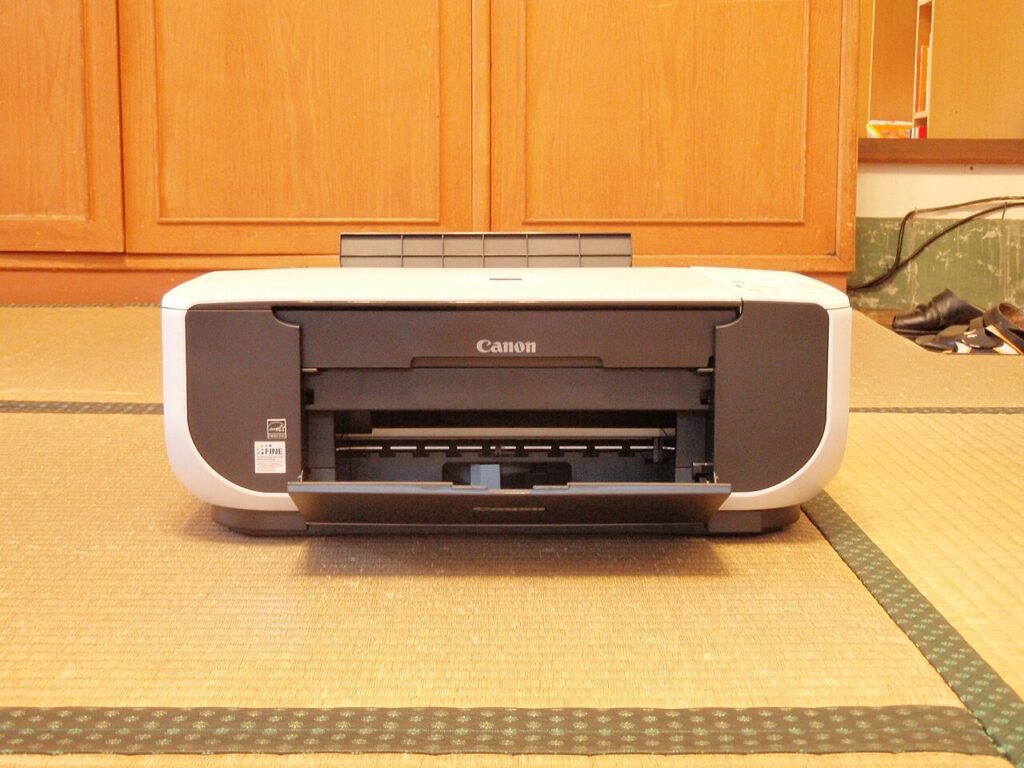

A good wireless printer offline fix should take you from guesswork to a printed page in a few minutes, not an hour of random restarts. When a printer suddenly shows as offline, the cause is usually boring: it jumped to the wrong Wi-Fi band, your computer is holding an old queue, or the printer grabbed a new IP address and your device is still pointing to the old one. The upside is that most of these problems are easy to untangle once you check them in the right order.
Before you start deleting drivers, do two quick sanity checks. Make sure the printer itself shows a Wi-Fi connection on its screen or status light, and make sure your laptop or phone is on the same home network. A guest network, mesh extender, or router reboot can quietly split devices apart. If you want a few more practical tech guides after this one, the Tips & Tricks homepage is a good place to browse, and our post on saving money on printer ink pairs nicely with this fix list.
Start with the simplest wireless printer offline fix checks
Look at the printer first, not the computer. Is it awake, out of paper, or stuck on an error message? Many printers go into a deep sleep mode that looks like an offline failure. Tap the wake button, open and close the paper tray, and check for any small warning icon on the display. If the printer has a network status page or wireless information screen, print or open it and confirm the Wi-Fi name matches your current network.
Next, power-cycle in the right order: printer first, then router, then computer. Give the router a full minute before reconnecting devices. This clears stale network leases and often brings the printer back with a fresh connection. If your printer supports both 2.4 GHz and 5 GHz, remember that some older models only like 2.4 GHz. Manufacturers often document this in support material; the setup advice from Microsoft and the Wi-Fi troubleshooting basics from HP Support are worth a look if your model is picky.
Clear old print jobs before you blame the network
An overloaded queue can make a healthy printer look dead. On Windows, open Settings > Bluetooth & devices > Printers & scanners, click your printer, and cancel every pending job. On a Mac, open Printers & Scanners, then the print queue, and remove stuck jobs there too. If one corrupted job refuses to disappear, restart the print spooler service on Windows or remove and re-add the printer on macOS.
Why does this matter? Because a jammed queue keeps sending the same failed command to the device. Your printer may be online again, but your computer is still replaying yesterday’s error. After clearing the queue, print a one-line test page from a simple app such as Notes or Notepad. Do not test with a big PDF first. PDFs, browser tabs, and label-print apps add their own complications, and you want the cleanest possible test.
Check the printer IP address and reconnect it cleanly
If the printer keeps dropping off after router restarts, the most likely culprit is a changed IP address. Your printer reconnects to Wi-Fi, but your laptop still expects it at the old address. Print the network configuration page from the printer, note the current IP, and compare it with the port or device information on your computer. If they differ, remove the printer and add it again so the system discovers the correct address.
For households that print often, give the printer a reserved IP address in your router settings. That means the router always hands the same address back to that printer. It sounds technical, but on many routers it is just a DHCP reservation checkbox next to the device list. One small change here can prevent the same offline headache every few weeks.
Use the right driver and disable the wrong default settings
Generic drivers are convenient, but they can be flaky on network printers. If your model is using a basic operating-system driver, install the current manufacturer package and reboot once. While you are in settings, make sure “Use Printer Offline” is not enabled. On Windows, that option can sometimes stay toggled after a past error, leaving the printer permanently marked offline even after the connection is fine.
Also confirm the correct default printer is selected. If you recently added a PDF printer, a work printer, or a neighbor’s shared device, your computer might be sending the job somewhere else and making you think nothing is working. Phones and tablets can add confusion too; if mobile printing works but the laptop does not, the problem is usually local to the computer, not the printer itself.
When to reset the printer network settings
If nothing above works, reset only the network settings, not the whole printer. This wipes the stored Wi-Fi details and lets you reconnect from scratch without losing all your print preferences. Rejoin the correct network, then add the printer fresh on each device that needs it. Save a note of the final working setup so the next fix is faster.
The best part about this wireless printer offline fix routine is that it is reusable. Start at power and Wi-Fi, clear the queue, verify the IP, then check drivers and settings. That sequence solves most home-printer drama without a service call.