Windows file history backup setup can solve a real everyday problem when you set things up carefully instead of rushing through the defaults. This guide keeps the advice practical, clear, and focused on actions that ordinary people can actually use.
Why a backup matters before disaster shows up
Most Windows users say backup is important, then postpone it until a laptop fails, ransomware lands, or a family member overwrites the wrong file. By then, every recovery option is slower and more expensive. A simple local backup will not solve every disaster, but it can save your documents, desktop files, and working drafts with almost no daily effort.
That is why a practical windows file history backup setup is still worth knowing. It is not glamorous and it is not a full enterprise system, but for ordinary home use it is one of the easiest ways to recover yesterday’s version of a file without panic.
Windows file history backup setup step by step
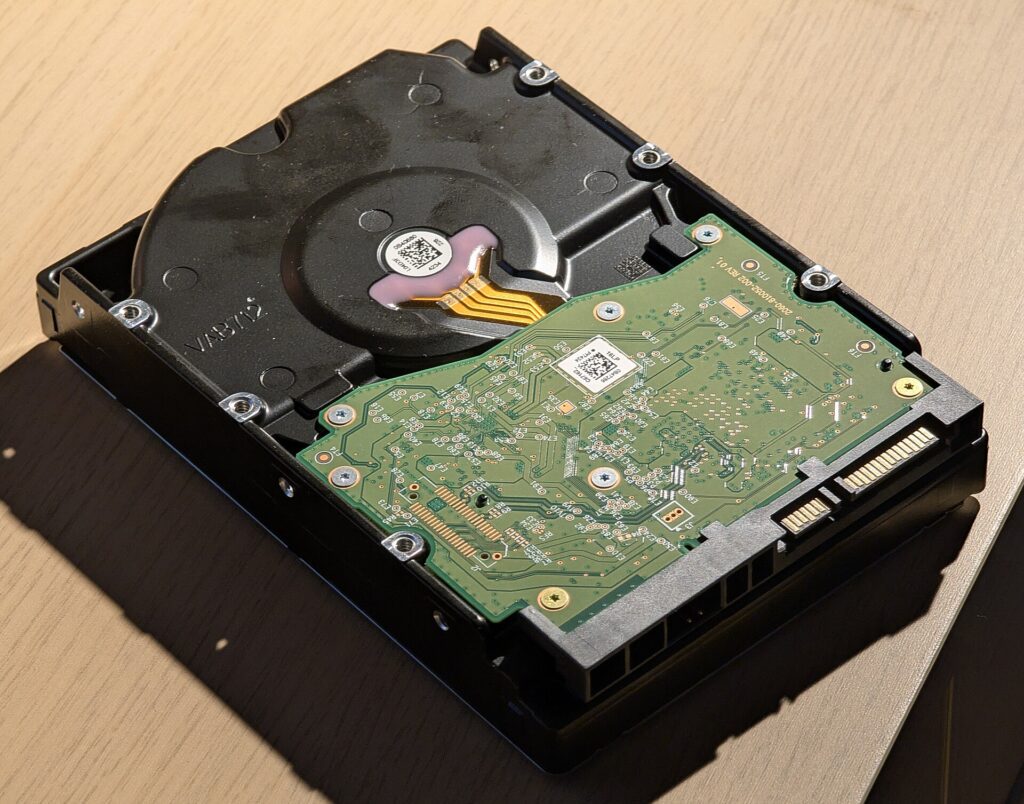
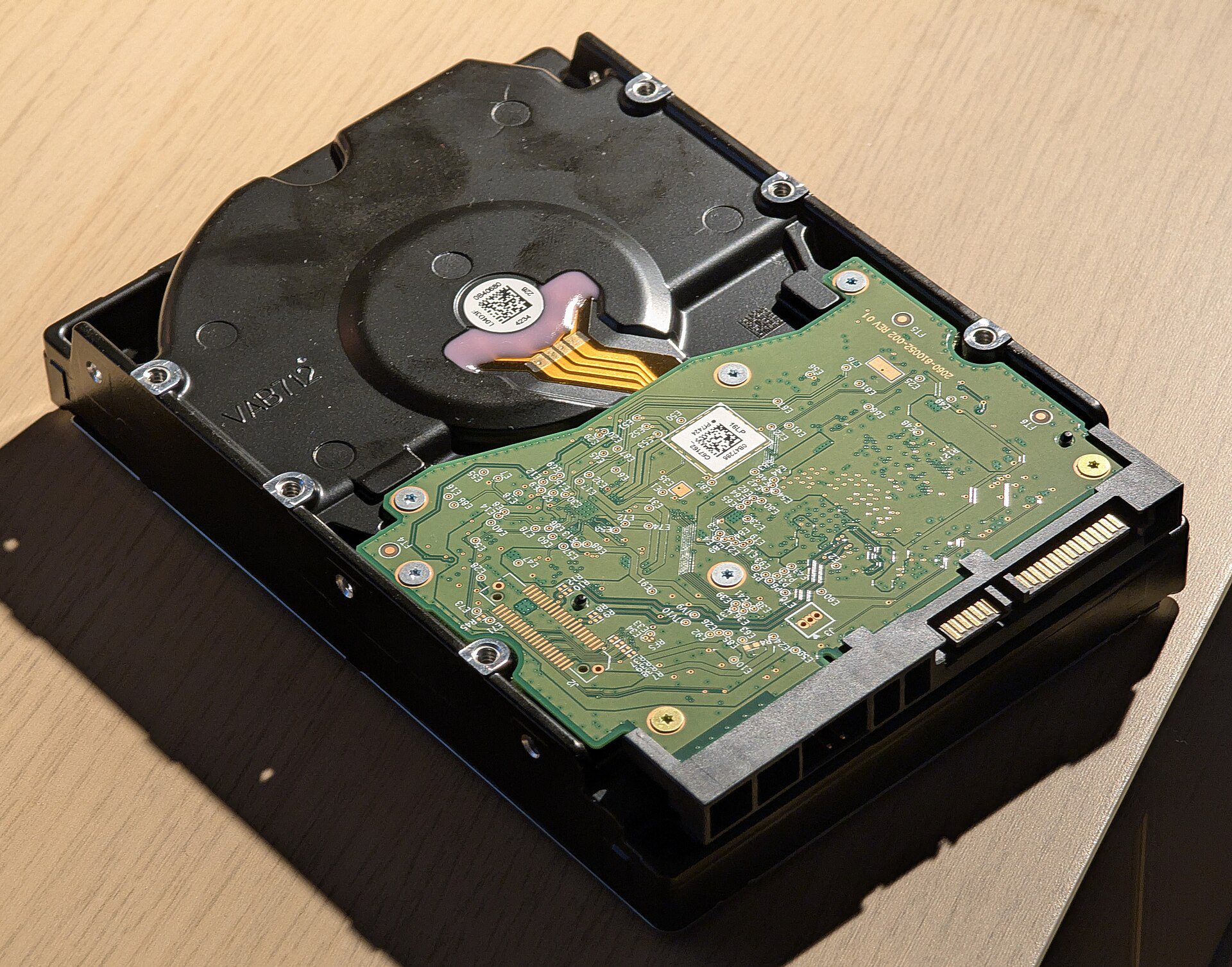
Connect an external drive first. File History works best when it has a dedicated destination instead of a drive that appears once a month. Then open Windows backup settings and look for File History or the older Backup options, depending on your Windows version. Choose the drive, turn the feature on, and confirm which folders are included.
The most important part of a windows file history backup setup is checking scope. Make sure your Documents, Desktop, Pictures, and any custom work folders are actually inside the backup path. If you keep important files in a random folder outside your user libraries, File History may not protect them until you move or include them.
Microsoft explains the restore workflow in its support materials, and it is worth reading once before trouble starts: Microsoft Windows support. You do not need to memorize every menu, but you should know how to open an earlier version when a file is changed or deleted by mistake.
How to avoid common backup mistakes
A backup drive that stays unplugged forever is not a backup plan. If your PC rarely sits at one desk, create a reminder to connect the drive once or twice a week. If the drive is always connected, understand the trade-off: it is convenient, but it may also be exposed during malware incidents. For many people, a routine plug-in schedule is a good middle ground.
You should also test a restore. Open an unimportant file, make a small edit, wait for a backup run, then restore the older version. That tiny test proves the system is really working. It also removes the false confidence that comes from seeing a feature turned on but never verifying the outcome.
Finally, do not confuse sync with backup. Cloud sync tools are useful, but they can also copy deletions and bad edits across devices. Backup is about version history and recovery, not just duplication.
A smarter two-layer safety routine
For many households, the best routine is File History for easy local restores plus a cloud copy for truly critical files. That gives you speed for accidents and extra resilience for device loss. You do not need a complicated system to gain a lot of protection.
If you are cleaning up your Windows routine more broadly, visit Tips-Tricks and read our guides on freeing up Windows storage and controlling Windows updates. A tidier PC and a real backup plan make a much better pair than either one alone.
The real value of a windows file history backup setup is not technical perfection. It is the calm feeling that one wrong click, one bad update, or one failing drive does not automatically become a total loss.
Label the backup drive clearly and keep one short note explaining what it is for. In many households, drives get reused, reformatted, or borrowed because they look like spare storage. A visible label protects the backup from becoming someone else’s movie drive or photo transfer stick.
If several people share one computer, make sure each person understands which folders are protected and which are not. A backup feels trustworthy only when the household knows where important files belong and does not scatter them across random locations.
If you only remember one thing from this guide, remember this: windows file history backup setup works best when you pick a few repeatable actions and actually use them every week. Fancy tools matter less than consistent habits, a quick monthly check, and a plan that still makes sense when you are tired, busy, or under pressure.