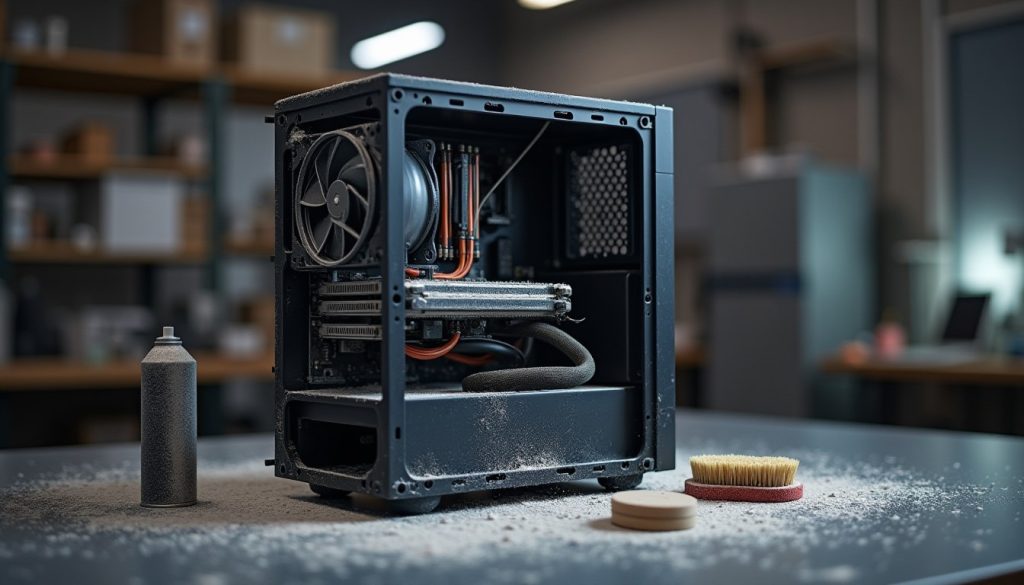
A desktop that has run for two or three years in a carpeted room is holding a surprising amount of dust. It gathers on heatsink fins, in fan blades, behind the front bezel and along the bottom of the case, and its effect is not cosmetic: it insulates the parts that are trying to shed heat, so the fans spin faster, the machine gets louder, and the processor throttles to protect itself. Clearing it out is a twenty-minute job with one real risk, which is doing it carelessly.
Before you open the case
Shut the machine down completely — not sleep, not hibernate — then unplug the power cable and hold the power button for five seconds to drain the residual charge from the board. Ground yourself by touching a bare metal part of the case before you touch any component; a static discharge you cannot feel is enough to damage memory or a graphics card.
Work somewhere with hard flooring rather than carpet, and take the machine outside or into a garage if you can. The dust has to go somewhere, and blowing it across a living room just relocates the problem into your lungs and onto the furniture. A mask is not excessive if the machine has never been cleaned.
Where dust actually collects
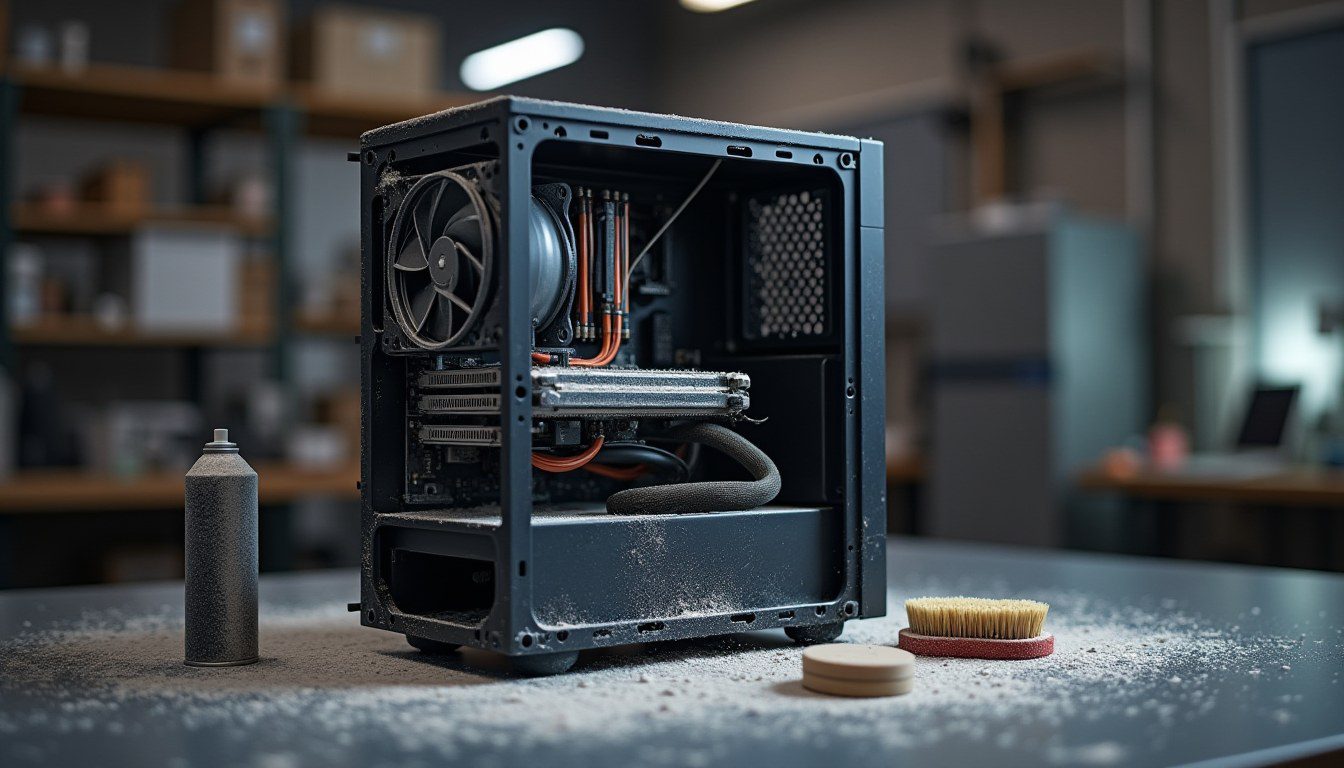
Four places matter more than the rest. The CPU heatsink is a dense stack of thin fins that traps dust like a filter, and a matted layer across it is the single biggest cause of overheating in an older desktop. Fan blades collect a rim of dust that unbalances them, which is where the rattling noise comes from. Front intake filters and bezels take the first hit and starve the whole case when clogged. And the power supply, if it has its own intake filter, is doing the same job with less airflow to spare.
Graphics cards deserve their own mention. Their coolers use the same fin-and-fan design in a tighter space, and the dust is harder to see without removing the card. If the card’s fans are audibly ramping up on a light workload, the fins are probably blocked.
Blow out, do not scrub in
Compressed air is the right tool, used in short bursts at an angle, with the fan held still. Holding the blades while you blow prevents the fan spinning up to a speed its bearing was never designed for — that is how a cleaning session turns into a replacement fan. Short bursts also stop the propellant from condensing on components; a long continuous blast can leave a cold, wet patch that you then have to wait to dry.
Work from the inside outwards so you are not driving dust deeper into the case. Hold the nozzle about ten centimetres away and let the air do the work rather than pushing the straw into the fins. For a really matted heatsink, a soft paintbrush loosens the layer first and the air removes it, which is faster and uses less propellant than blasting at a solid block of dust.
Never use a household vacuum directly on a motherboard. The plastic nozzle generates static, and the suction can dislodge small jumpers. If you want to vacuum, do it on the floor of the case and around the outside, and keep the nozzle away from the board.
Filters, fans and airflow direction
Before reassembling, check that every fan still points the way the case was designed. Front and bottom fans normally pull air in; rear and top fans push it out. A fan refitted backwards creates a fight between intake and exhaust and can raise temperatures even though airflow looks fine. Most fan frames have small arrows moulded into the plastic showing rotation and flow direction.
Washable mesh filters can be rinsed and must be bone dry before they go back — a damp filter is a dust magnet and, over months, a corrosion risk. Disposable foam filters are cheap enough to replace rather than wash repeatedly, and a stretched, disintegrating foam filter is doing nothing except shedding particles into the case.
Put it back together and check the temperatures
Refit the side panel, reconnect power, and boot. Then look at the numbers rather than the noise: a monitoring tool will show idle and load temperatures for the processor and graphics card. A healthy desktop idles in the thirties or low forties Celsius and stays below the mid-eighties under sustained load. If temperatures barely moved after a thorough clean, the cooler may be loose, the thermal paste may be dried out, or a fan may have failed.
Replacing thermal paste is worth doing only when the numbers justify it — a cooler that has been removed and refitted, or a machine five or more years old with clean fins and still-high temperatures. It is a fiddly job with a real chance of making things worse if the mounting screws are unevenly tightened, so do the cleaning first and see whether the problem is already solved. Our guide to stopping laptop overheating and fan noise covers the equivalent job on a machine that is much harder to open.
While the case is open, it is also a sensible moment to check drive health, since a failing SSD is easier to catch before it takes your files with it — see checking SSD health before it fails. And if the desktop shares a wall socket with a router, monitor and printer, the sizing logic in choosing a UPS for your router and PC is worth applying before the next power cut.
How often this is worth doing
Twice a year is enough for most homes, and once a year is enough in a clean, hard-floored room with a filtered case. Pets, carpet, smoking and open windows all shorten that interval. The signal to clean sooner is behavioural rather than calendar-based: the machine gets louder at the same workload, the fan ramps up during video calls, or the case feels warm to the touch on the top panel.
Write the date on a sticker inside the side panel when you finish. Next time you open it, you will know exactly how long that dust took to build up, which is a far better guide than a general rule. The EPA’s indoor air quality guidance is a reasonable reminder of why blowing a decade of dust into a closed room is a bad idea.