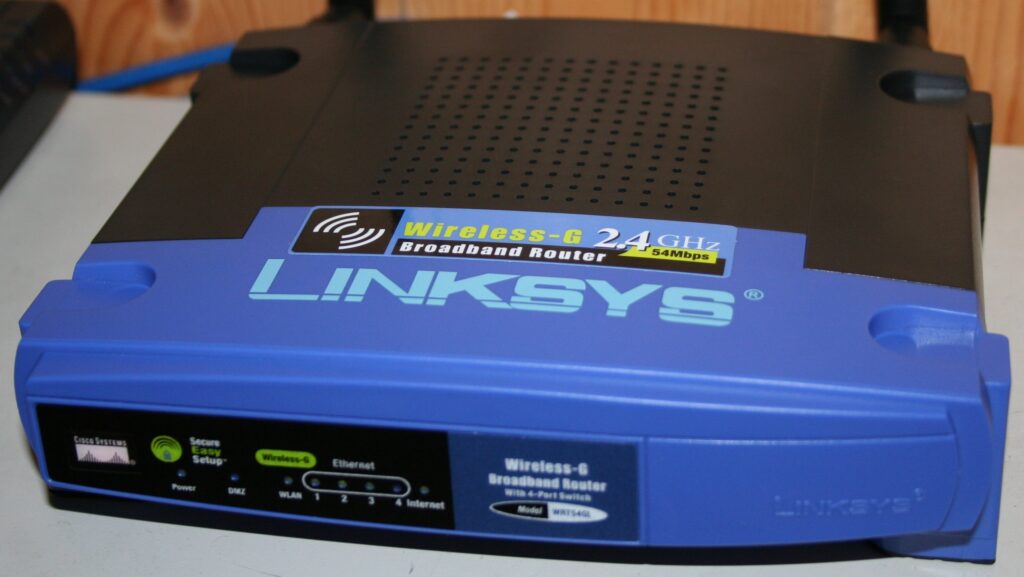
Knowing when to reboot your router can save you from hours of blaming your provider, your laptop, or the app that suddenly feels slow. A router reboot will not fix every network problem, but it often clears the small glitches that build up after days or weeks of nonstop use. If pages half-load, video calls start turning robotic, or smart-home gadgets drop off the network one by one, a careful restart is usually the first move that makes sense.
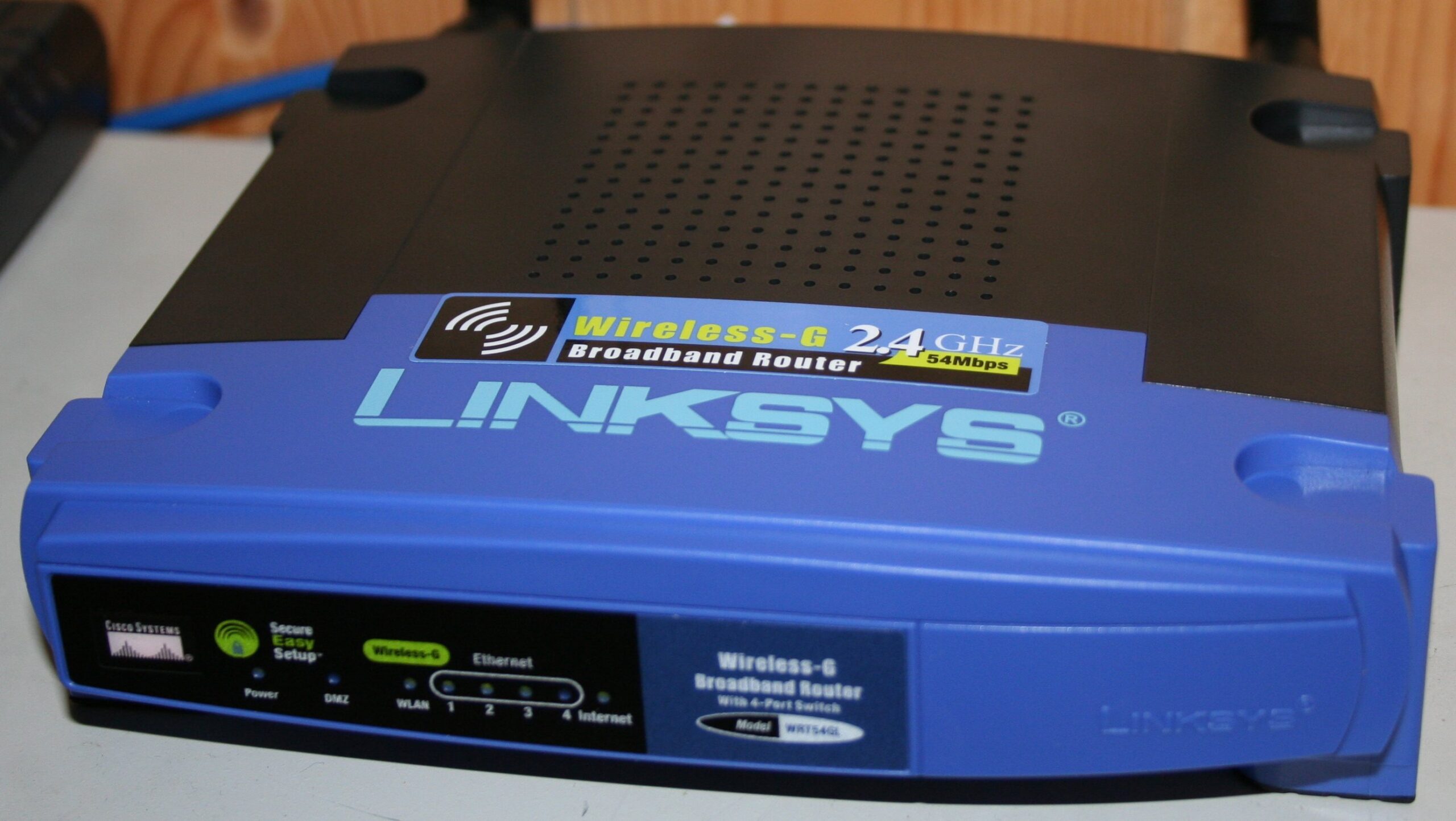
When to Reboot Your Router Before You Change Anything Else
The best clue is inconsistency. Maybe your phone works in the kitchen but not in the bedroom. Maybe the TV streams fine, then buffers every few minutes, while your laptop hangs on simple websites. Those jumpy problems usually point to a tired router rather than a total outage. If every device is slow at the same time, that is another strong sign.
Look for timing, too. Routers that have been running for weeks without a restart can collect memory leaks, stale device sessions, or minor firmware hiccups. You do not need to reboot every day, but a restart is smart after a power flicker, a firmware update, a sudden pileup of unknown devices, or a morning when your usual signal strength feels strangely weak.
Take a Safe Reboot Before You Reach for Factory Reset
A proper reboot is simple: save any work, power off the router, wait about 20 to 30 seconds, and turn it back on. If you use a separate modem, restart the modem first, wait for its lights to settle, and then restart the router. Give the network a few minutes before you judge the result. Many people test too early and assume nothing changed.
What you should not do is hammer the power button five times, unplug cables at random, or hit factory reset because you feel impatient. A factory reset wipes your custom name, password, guest network, parental controls, and other settings. Reboot first, test with one phone and one laptop, and only move to deeper troubleshooting if the basic restart truly changes nothing.
What to Check Right After the Router Comes Back
Once the lights settle, test the places that were giving you trouble. Open two or three sites, run a call for a minute, and check one stubborn device such as a camera, printer, or smart plug. If everything feels normal again, the reboot probably cleared temporary congestion. If only one room is still bad, the issue is more likely placement than software.
This is also a good time to notice patterns. If reboots help every few days, your router may be trapped inside a cabinet, covered in dust, or working too hard for the size of your home. Putting it higher, out in the open, and away from thick walls can make a bigger difference than buying a new plan. On older hardware, periodic reboots can buy time, but placement and firmware still matter.
If the reboot changes nothing at all, compare wired and wireless devices. A smart TV on Ethernet working normally while phones on Wi-Fi crawl points you back to the router side of the setup. Everything failing, including a wired computer, is a clue to look at the modem, the incoming service, or an outage beyond your home.
How to Need Fewer Reboots in the First Place
Keep the router ventilated, install firmware updates when the maker offers them, and remove old devices you no longer use. Too many forgotten gadgets hanging around can create noise, confusion, and extra background chatter. If guests visit often, set up a guest network instead of handing out your main password. That keeps your core devices separate and makes troubleshooting cleaner later.
Finally, pay attention to heat. A router tucked behind a TV or on top of another warm device can behave badly long before it fully dies. If your connection improves after every restart but falls apart again by evening, the box may simply be cooking. A cooler spot, a little dust cleanup, and fewer obstacles can do more than most people expect.
Related reads
- Tips & Tricks homepage
- Set Up a Guest WiFi Network in 5 Minutes (Do It Today)
- Secure Your Home Router: 8 Steps That Work
For device-specific restart menus, see Google’s router restart guide. Placement advice also helps; Google’s router placement tips are worth a quick read.