Two factor authentication setup takes about twenty minutes for your most important accounts, and it blocks the single most common way people get hacked: a stolen or reused password. A password alone is one lock. With a second factor, a thief who has your password still can’t get in without your phone. Microsoft and Google have both reported that adding this one step stops the overwhelming majority of automated account-takeover attacks.

What Two Factor Authentication Setup Involves
The idea is simple: after your password, the site asks for a short code that only your device can produce. That code comes from one of three places — a text message, an authenticator app, or a hardware key. You enroll once per account, and afterward most services only re-prompt when you sign in from a new device, so the daily friction is close to zero.
Start With These Four Accounts
Don’t try to secure everything in one sitting. Protect the accounts that unlock everything else, in this order: your primary email (password resets for every other service land there), your bank and payment apps, your password manager if you use one, and your main social accounts, which are prime targets for impersonation scams. Twenty minutes covers all four.
App Codes Beat Text Messages
SMS codes are better than nothing, but they’re the weakest option — attackers can hijack a phone number through SIM-swap scams at the carrier level. An authenticator app (Google Authenticator, Microsoft Authenticator, Aegis, or the one built into iPhone’s Passwords app) generates codes on the device itself, with nothing to intercept. Setup is the same everywhere: choose “authenticator app” in the account’s security settings, scan the QR code it shows, and type the six-digit code to confirm. CISA’s Turn On MFA guide walks through the process for the major services.
Save Your Backup Codes — Seriously
Every service that enrolls you in 2FA offers a set of one-time backup codes. People skip this step, then lose or break a phone and get locked out of their own email for weeks. Print the codes or write them down and keep them somewhere physically safe — a drawer at home is fine; a note saved in the same account you’re protecting is not. If you use a password manager, its secure-notes section works too.
When You Get a Code You Didn’t Ask For
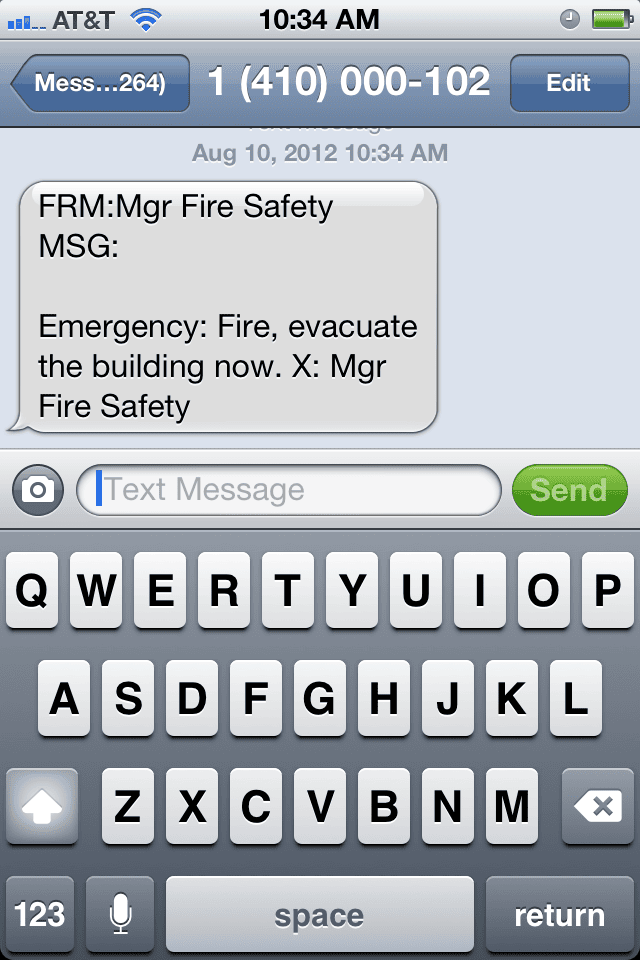
An unexpected code text means someone has your password and just failed the second lock. Don’t ignore it: change that account’s password immediately, and never approve a login prompt you didn’t trigger. Scammers also call pretending to be support and ask you to “read back the code we sent” — no legitimate company does this, ever. The FTC’s guide to recognizing phishing scams covers the common variations.
A Realistic 20-Minute Walkthrough
Here’s how the actual sitting goes. Minutes one to three: install an authenticator app from your phone’s official store. Minutes four to nine: open your email provider’s security page (search “Gmail 2-step verification” or your provider’s equivalent), choose the authenticator option, scan the QR code, confirm, and download the backup codes. Minutes ten to fifteen: repeat for your bank — most banking apps hide the option under Settings → Security. Minutes sixteen to twenty: do your main social account and write the backup codes somewhere physical. Done. Every future login on your usual devices behaves exactly as before; only strangers get stopped at the second gate.
Level Up Later, Not Today
Once app-based codes feel routine, two upgrades are worth knowing about. Passkeys let you sign in with your fingerprint or face and no password at all — more services add them every month. Hardware security keys, small USB devices you tap to approve a login, are the gold standard for anyone who handles sensitive data. Neither is required for solid everyday protection; codes from an app already put you far ahead of most people online.
Your accounts are only as strong as the passwords behind them, so pair this with a few password manager habits and learn to spot phishing scams before they reach the login page. More plain-English security guides live on the Tips & Tricks homepage. Two factor authentication setup is the rare security chore that’s genuinely done in one evening — and it keeps paying off every day after.