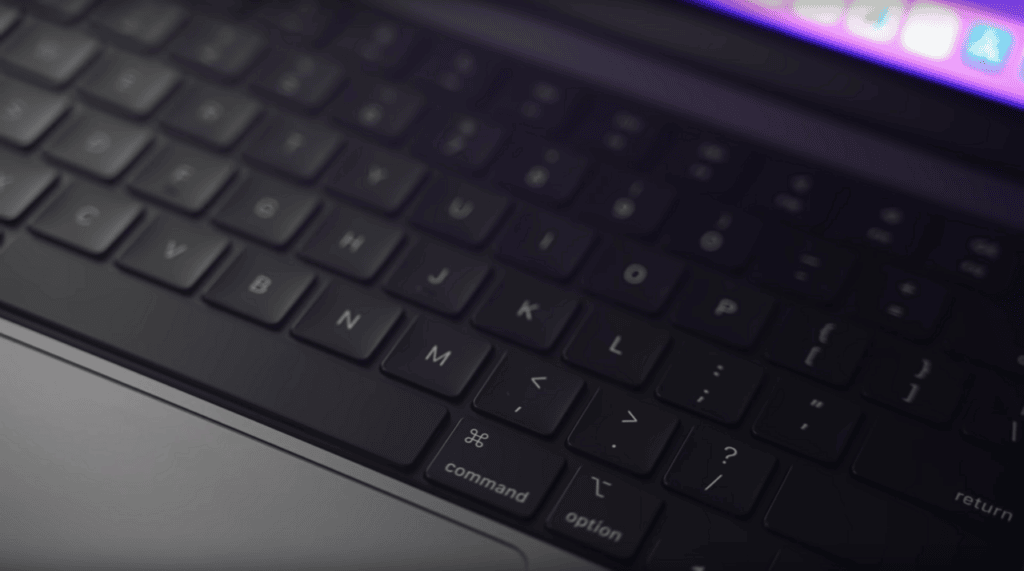
Mac keyboard shortcuts feel optional until you notice how many tiny motions disappear once you learn the right handful. You stop reaching for the trackpad every few seconds. You switch apps faster, move text around without thinking, and keep your hands in the same place while work flows a little more smoothly. You do not need to memorize fifty commands to see the benefit either. A small set of useful shortcuts can save time every single day.

Mac keyboard shortcuts that remove the most common friction
Start with the basics you already repeat constantly. Command-C, Command-V, and Command-X are obvious, but Command-Tab, Command-Space, and Command-W often make a bigger difference across a workday. Command-Tab switches apps, Spotlight search opens with Command-Space, and Command-W closes the current window or tab without extra pointer movement.
Apple keeps a useful official list of shortcut basics on its support site, and it is worth bookmarking. Once those keys feel natural, add Command-Shift-4 for screenshots and Command-H to hide the current app when your desktop gets crowded. The point is not to learn everything at once. The point is to replace the actions you already repeat most often.
If a shortcut does not match the way you work, skip it. A helpful set of six beats a confusing set of twenty.
Use Mac keyboard shortcuts for text editing and window control
Text editing is where shortcuts quietly pay rent. Option-Left and Option-Right jump a word at a time, while Command-Left and Command-Right jump to the start or end of a line. Add Shift to those movements and you can select text quickly without dragging across the screen. That is especially helpful when cleaning up long emails, notes, or reports.
For browser and document tabs, Command-T opens a new tab and Command-Shift-T restores one you closed by mistake. That last one alone can rescue you from the small daily panic of losing a page you meant to keep open. In Finder, Command-Delete sends a file to the Trash without breaking your flow.
These are not flashy tricks, but they remove a surprising amount of drag from ordinary work. Once your fingers learn them, using menus feels slow.
Build the habits in small layers
The easiest way to remember shortcuts is to learn them in groups. Pick one group for a week: app switching, text editing, screenshots, or browser tabs. Use sticky-note reminders near the screen if you need them for a few days. After repetition kicks in, the keys stop feeling like homework.
Another good move is to notice where you keep repeating a mouse action. If you are always opening Spotlight, switching Safari tabs, or taking screenshots for work, there is probably a shortcut worth learning there. Focus on the places where the repetition is already obvious instead of forcing yourself through a giant list.
For more simple productivity improvements, browse the Tips & Tricks homepage. You can also pair this guide with Google Docs Tips for Faster, Cleaner Writing and Windows Clipboard History Tips That Cut Copy-Paste Time.
Customize where it actually helps
Once you are comfortable with the basics, check the Keyboard section in System Settings. Some apps let you create custom shortcuts for menu commands you use constantly. That can be helpful for specialized workflows in writing, design, or file management. You do not need to customize much, but one or two thoughtful changes can make a familiar app feel far smoother.
It is also smart to learn the shortcut viewer in app menus. When a menu item lists a shortcut on the right, pay attention. That is the fastest way to discover commands that already match the app you use every day.
If you switch between a Mac and another platform, keep a small cheat sheet nearby for a week so the Command key starts to feel natural. That short adjustment period is usually the only real barrier for people who say shortcuts never stick.
Try pairing one new shortcut with one repeated task every day. Open Spotlight with Command-Space, restore a closed tab with Command-Shift-T, or jump by words while editing. Repetition beats memorization every time.
Mac keyboard shortcuts are one of the easiest upgrades you can make to your routine because they cost nothing and keep paying off. Learn a few, use them until they feel automatic, and let that small speed gain compound across the week.