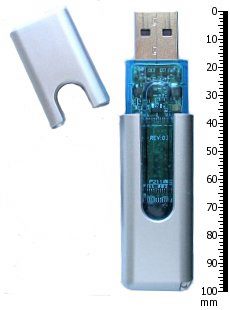
These usb flash drive tips exist because of a hard truth most people learn the expensive way: a flash drive is a courier, not a vault. It moves files from A to B beautifully. As the only home for your dissertation, tax records or wedding photos, it is a slow-motion disaster. Treat it accordingly and it will serve you for years.

The usb flash drive tips that matter most for reliability
Flash memory wears out by design. Each cell tolerates a finite number of write cycles, and the cheap controllers in budget drives do far less wear-levelling than an SSD. Worse, a flash drive gives almost no warning before it fails — no clicking, no gradual slowdown, just a drive that stops mounting.
So: never let a file exist only on a flash drive. Keep the original where it lives and use the stick as the copy. If you must carry the only version of something, get it onto a second location the moment you have internet. This one habit prevents more grief than every other tip combined.
Second: always eject properly. Windows and macOS buffer writes, and pulling the drive mid-flush corrupts the file table, not just the file you copied. On Windows use the tray icon or right-click the drive and choose Eject; on macOS drag to the bin or press Cmd-E. The three seconds are worth it.
Pick the right format, and stop the 4GB error
The "file is too large for the destination file system" error catches everyone. FAT32, the default on most drives out of the box, cannot store a single file over 4GB. Your options:
- exFAT — the right default in 2026. Works on Windows, macOS, Linux, most TVs and consoles. No practical file size limit.
- NTFS — Windows-native, journalled, but macOS can only read it without extra software.
- FAT32 — only for old car stereos, cameras and devices that demand it.
Reformatting wipes everything, so copy the contents off first. Then right-click the drive in Windows Explorer, choose Format, pick exFAT and leave the allocation unit at default.
Encrypt anything you would hate to lose in a taxi
A flash drive is the easiest thing in your bag to leave behind. If it holds anything personal — scans of documents, client work, financial records — encrypt it. Windows Pro users have BitLocker To Go built in (right-click the drive, Turn on BitLocker). Everyone else can use VeraCrypt, which is free, open source and cross-platform.
Write the recovery key down somewhere physical. An encrypted drive with a forgotten password is the same as a dead drive, and there is no support line that can help.
Speed, fakes and buying sensibly
USB 3.x drives are dramatically faster than USB 2.0 for large files, but many cheap 3.0 drives use slow flash and write at 10MB/s regardless of the port. If you move big files often, look at rated write speed rather than the port version, and expect to pay for it.
Counterfeit capacity is a real and widespread problem on marketplace listings — a drive reports 1TB but physically holds 16GB, and writing past that silently destroys earlier data. If a price looks impossible, it is. Test any suspicious drive with a capacity verification tool before trusting it, and buy storage from sellers you would trust with a phone.
Small habits that make a drive actually usable
- Name it. Rename the volume to something like "TOM-WORK" so it is obvious in a file manager and identifiable if found.
- Add a README.txt at the root with your email. Costs nothing, and honest people do return drives.
- Keep a folder structure rather than dumping 300 loose files at the root. Your future self will thank you.
- Scan it after use on a public or library machine. Flash drives remain a common malware vector. Windows Defender handles this fine.
- Retire drives on a schedule. Anything more than four or five years old that you use weekly has earned replacement.
When a drive stops working
Try a different port and a different computer first — a surprising share of "dead" drives are dead ports. If the drive shows up in Disk Management but has no letter, assigning one often brings it straight back. If the file system is corrupt but the hardware is alive, chkdsk X: /f on Windows recovers many cases. If the drive does not appear at all on any machine, the controller has failed and only a paid recovery lab can help — which is exactly why the first of these usb flash drive tips is to never store the only copy.
For a proper safety net, pair this with our guide to backing up so you never lose data again, and find more storage and file guides on the Tips & Tricks homepage.