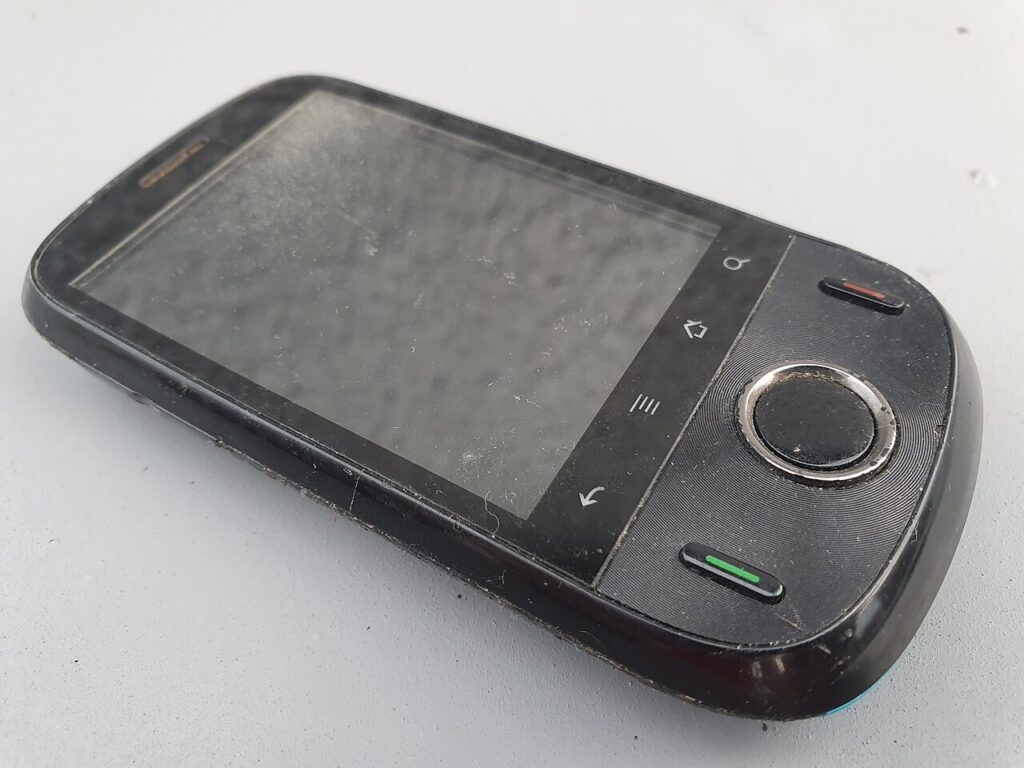
Your phone says 2 GB free, but every app feels sluggish. Where’s the space going? Hidden cache files.
Android and iOS bury temporary app data, old thumbnails, and log files in hidden directories. These files add up quietly—some phones accumulate 5–15 GB of cache over a year. Good news: clearing cache is safe and can reclaim gigabytes without deleting your photos or app data.
Why Cache Piles Up on Your Phone
Every app stores temporary files: thumbnails you’ve scrolled past, login tokens, DNS lookups, downloaded assets for ads. iOS caches are smaller because Apple manages app data strictly, but Android apps cache aggressively with no auto-cleanup. A year of using maps, social media, and email can easily leave 3–5 GB of cache behind. Social media apps like Instagram and TikTok are the worst offenders, caching hundreds of video previews.
Cache isn’t dangerous data—it’s orphaned junk. Clearing it won’t break your apps or delete messages, photos, or logins (apps re-cache as you use them). It’s one of the safest cleanup moves you can make.
Android: Clear App Cache in System Settings
Go to Settings > Apps > [tap the menu] > “Show system apps”. For each app, tap Storage > Clear Cache. On Android 12+, go to Settings > Storage > Cache Files and tap Clear All. This is faster than clearing cache app-by-app and is completely safe—your logins, photos, and chats stay intact.
Some cache rebuilds instantly (apps recreate it on first use), but you’ll often see 500 MB–2 GB freed immediately.
iPhone: Clear Safari Cache and App Data
iPhone doesn’t expose app cache the way Android does, but Safari builds a large cache. Go to Settings > Safari > Clear History and Website Data. Choose “All time” or a date range. For third-party app caches, iOS automatically trims them when storage runs low, but you can speed this up by going to Settings > General > iPhone Storage, tapping any app, and swiping to uninstall then re-install it (your data syncs back from iCloud).
Hidden Cache in System Folders (Advanced)
On Android, manually browse to the hidden .cache and .local folders using a file manager (enable “Show hidden files”). You’ll see folders like /Android/data/ and /Android/cache/ that hold app-specific temporary data. Only delete folders for apps you no longer use—don’t delete entire app folders if the app is still installed, as it may cause crashes. Google’s official storage guide explains cache management.
Prevent Cache Bloat Going Forward
Restrict background app refresh for social media: Settings > Apps > [app] > Permissions > turn off “Appear on top” and limit background activity. Uninstall apps you haven’t opened in 3 months—they’re only accumulating cache. Use lighter versions like “Lite” apps when available (Instagram Lite uses a quarter of the cache of the full app).
Set a monthly reminder to clear cache. It takes 2 minutes and keeps your phone responsive. For more phone storage tricks, see our complete mobile storage guide.
Cache cleanup is the fastest storage win you’ll see today. Free up 2–5 GB, feel the speed boost, and do it again next month.
When to Completely Uninstall and Reinstall
Some apps cache so persistently that clearing cache alone doesn’t free space. If a social media app still consumes 500 MB after cache-clearing, uninstall and reinstall: Settings > Apps > [app] > Uninstall. Then reinstall from the app store. This removes all app data, cache, and temporary files. Your logins will reset, but your account data syncs back once you log in again. Use this nuclear option only when cache-clearing leaves gigs behind.
After reinstalling, change the app’s backup frequency: go to Settings > Apps > Notifications > [app] and uncheck “Auto-sync” or set sync to “Wi-Fi only” to prevent cache rebuilding on cellular. This keeps the app lean going forward.
Use Storage Monitor Apps for Ongoing Tracking
After your cleanup, install a lightweight storage monitor to track cache buildup in real-time. Apps like Files by Google or Disk Usage Analyzer show you which apps consume the most space. Set a reminder to clear cache monthly—it’s a 2-minute task that keeps your phone responsive and backup-ready. The more frequently you clear cache, the smaller each cleanup is, so it never becomes a problem again.