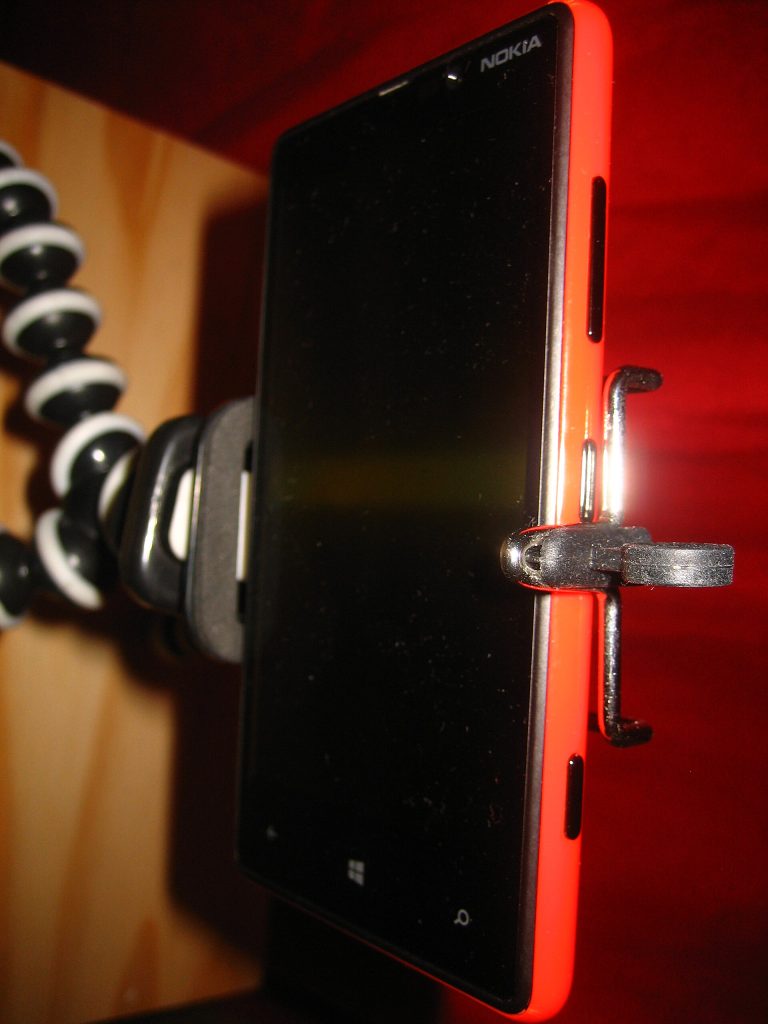
Laptop webcams are the weakest camera most people own: a tiny sensor, a fixed focus, and a mounting position that looks up your nose. The phone in your pocket has a better lens than most standalone webcams sold this decade. Using your phone as a webcam takes about twenty minutes of setup, and the difference on the other end of the call is immediate — sharper image, better exposure, and a background that looks like a room rather than a smear.
Mount it at eye level, not on the desk
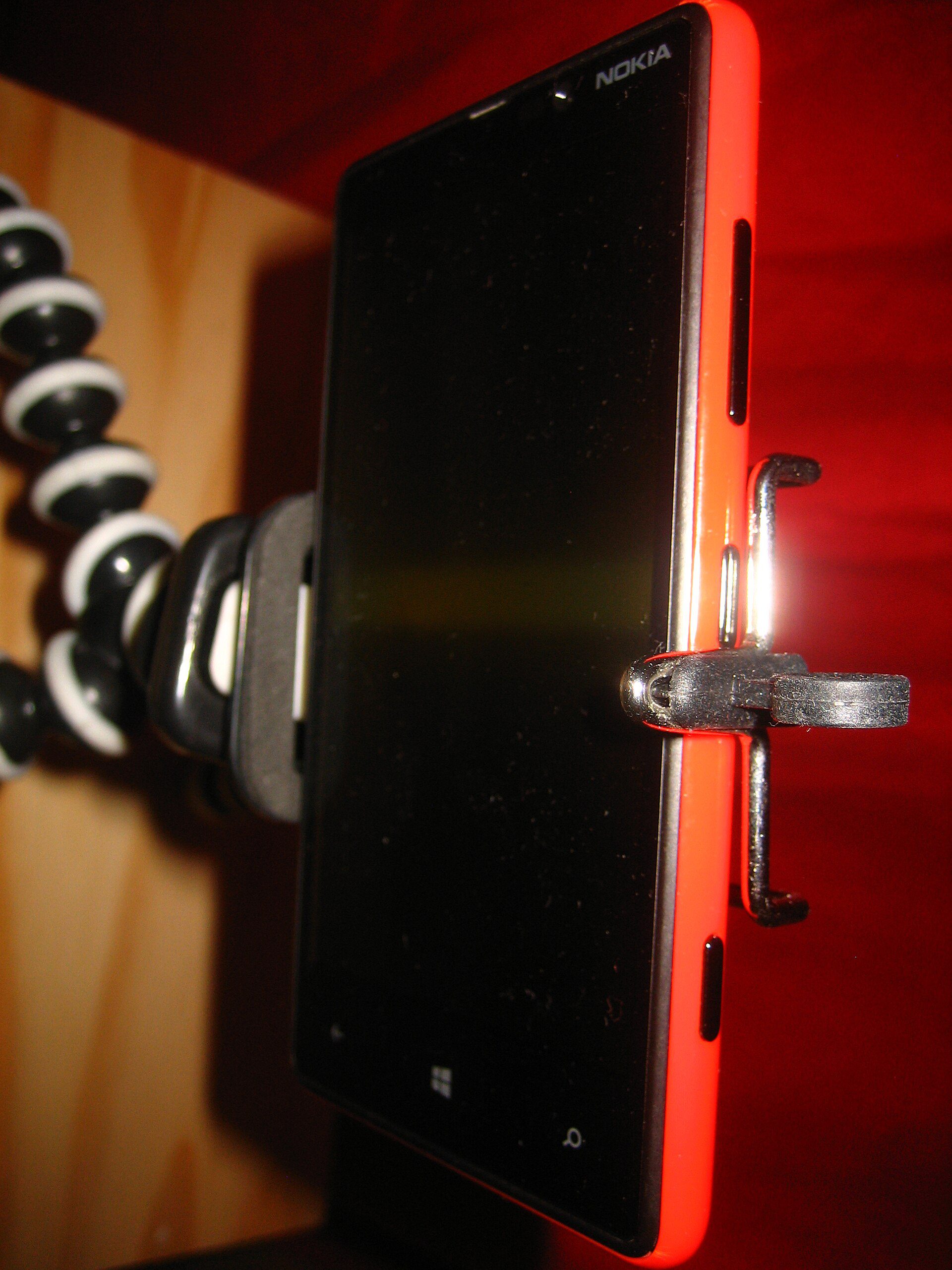
The single biggest improvement is not resolution. It is height. A phone propped against a mug on the desk films your chin and the ceiling; a phone clamped at the top of the screen films your face. Any cheap clamp with a 1/4-inch thread does the job, and most tripods already have that thread.
Frame yourself with headroom: the top of your head should sit just below the top edge of the frame, with your eyes about a third of the way down. That single adjustment is what separates a phone as a webcam that looks professional from one that looks improvised. Then check what is behind you. A door, a bookshelf, or a plain wall works; a window works against you because the camera exposes for the bright background and turns you into a silhouette.
Wired beats wireless, every time
Wireless webcam apps exist and they work, but they send a compressed video stream over Wi-Fi, which is the same network your call is already using. The result is soft video, lip-sync drift, and dropouts when someone in the house starts a download. A USB cable removes all three problems and charges the phone at the same time.
On a Mac, iPhone tethering to the system camera is built in and needs no third-party software. On Windows, phone-link style features and dedicated apps can expose the phone as a camera device once it is connected by USB. If your phone and laptop both support it, that native route is more stable than any app that renders a fake webcam driver.
Plug in before you join the meeting, not during it. Windows and macOS both take a few seconds to register a new camera, and switching mid-call in some conferencing tools drops the video track entirely.
Picking an app to use your phone as a webcam
If you do need a third-party app, read what it asks for before installing it. A webcam app needs camera access and a way to talk to your computer; it does not need contacts, location history, or your call log. Prefer apps that describe a local connection over USB or the local network, and avoid anything that routes your video through a server to reach your own laptop.
Check whether the free tier puts a watermark or a time limit on sessions. A fifteen-minute cap has a way of arriving halfway through the meeting that matters. Also confirm the app supports your phone’s rear camera array properly — many default to the front camera, which is the lower-quality one.
Lighting and sound need as much attention as the camera
Put a light source in front of you and slightly to one side — a desk lamp aimed at the wall beside your monitor is better than a lamp aimed at your face, which flattens features and bounces glare into the lens. Avoid sitting with a window behind you. If the room is genuinely dark, a small LED panel on a low setting beats the phone’s own brightness boost, which adds noise.
Audio is the part people underrate. The phone’s microphone is decent but omnidirectional, so it picks up keyboards, fans, and traffic. If your calls matter, use a wired headset or a USB microphone on the laptop and keep the phone purely as a camera. Our guide to improving laptop webcam and microphone quality covers the audio side in more depth.
Stop the phone from sleeping, overheating, or dying
A phone used as a webcam runs its camera sensor continuously, which is more demanding than recording a video. Expect it to get warm after thirty minutes. Take the case off, keep it out of direct sun, and avoid stacking books around it — heat is the usual reason a phone as a webcam setup degrades after an hour.
Turn off auto-lock, or set it to never while charging, so the camera feed does not die at the two-minute mark. Disable notifications or enable a focus mode, because a banner sliding into frame is the most common way a professional call becomes a comedy. And if your calls run long, keep the charger connected: camera plus screen plus radio is a fast battery drain.
The whole setup, in order
Mount at eye level, connect by cable, pick the rear camera, add light in front, use a headset for sound, and set the phone to stay awake. Ten minutes of work, and the phone as a webcam question stops being a topic of conversation in your next team call.
If your meetings are still rough after that, the problem may be the room rather than the hardware — setting up a better video call at home covers the desk layout, and moving files between phone and laptop without cables is useful once the phone lives on your desk permanently.
Google’s Google Meet help pages list the camera and microphone settings each meeting type expects, which is a quick way to confirm the app is using the device you think it is. Most “my camera looks terrible” complaints end there, with the call app quietly still pointed at the old laptop lens.