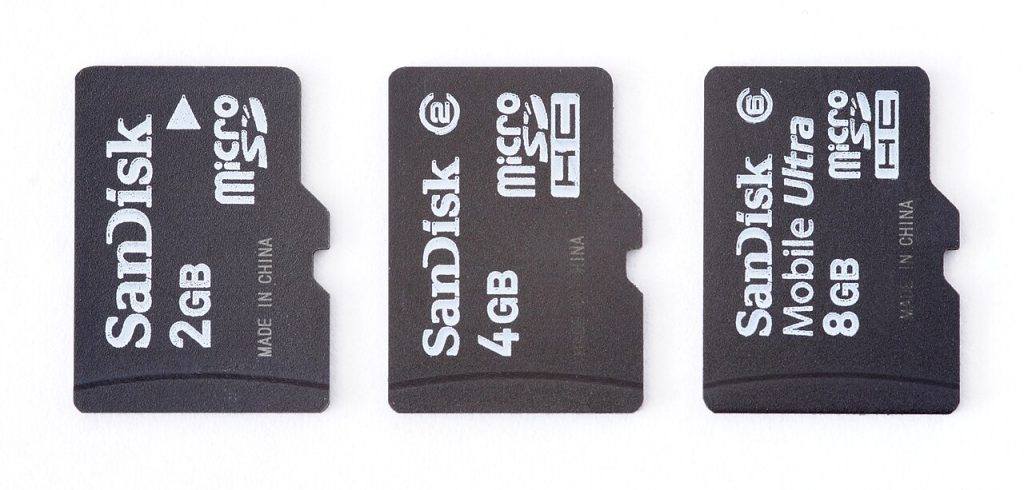
A cheap 512 GB memory card that costs a third of the real price is almost never a bargain. Fake microSD cards are reflashed to report a capacity they do not have, and they fail in the worst possible way: they accept your files, look normal for weeks, then overwrite your photos and documents as the real flash runs out. Knowing how to spot a fake microSD card takes about twenty minutes and can save years of photos.
How fake cards actually work
Flash memory inside a card is a fixed size. Counterfeiters take a 8 GB or 16 GB card and rewrite its controller firmware so the card reports 256 GB or 1 TB to your phone or PC. Every operating system believes the reported number. The first few gigabytes write normally. After that, the controller wraps around and silently overwrites the oldest data with the newest — no warning, no error, no corrupted-file icon.
Some fakes also use recycled flash from discarded devices. Those cards work, but they can lose sectors at any time, which is why the failure usually looks like “my photos disappeared” rather than “the card died”.
Warning signs of a fake microSD card
- The price is far below every other listing. Genuine high-capacity cards have a floor price set by flash costs. A 1 TB card at a fraction of that floor is fake or stolen.
- The brand is misspelled. Look closely at logos: “SanDisk” versus “SanDlsk”, “Samsung” versus “Samsnug”. These exist and are sold openly on marketplaces.
- No capacity markings or a sticker instead of printed text. Genuine cards print capacity and speed class on the label, not on a cheap sticker.
- The seller has no warranty terms. Reputable brands offer limited lifetime warranties on many cards and honour them through local distributors.
- The packaging has no hologram, no importer details, and no serial number that matches the card.
Buy from an authorised shop, or from a marketplace seller with a long history and a return policy you can actually use. The two or three hundred taka you save is not worth a corrupted wedding album.
How to test a card you already own
1. Check the reported capacity
Insert the card into a PC and read the capacity in the file manager. Then compare it to the printed label. A mismatch is an immediate red flag — though a matching number proves nothing, because that is exactly what fake firmware rewrites.
2. Write more data than the card can really hold
The reliable test is to write files totalling at least the card’s claimed capacity, then read every file back and compare checksums. Free tools such as H2testw on Windows, F3 on Linux and macOS, or SD Insight on Android do exactly this. It takes time — often an hour or more for large cards — but it is the only test that actually proves capacity.
3. Watch the write speed collapse
A real card writes at a roughly steady speed. A fake often starts fast, then falls to a crawl once it passes the real flash limit. If a “256 GB” card slows to a standstill after 6 GB, you have your answer.
4. Run a checksum comparison on your important files
Copy a folder of photos to the card, then copy them back to a different folder and compare file sizes and checksums. If files come back different or truncated, stop using the card immediately.
What to do if your card turns out to be fake
- Stop writing to it. Every new file can overwrite old data permanently.
- Copy everything off now, oldest files first if you can tell — those are the ones most at risk.
- Verify what you copied by opening a sample of files and checking checksums where possible.
- Return it if the seller allows it, and report the listing. Marketplace fake-card listings usually disappear only after enough reports.
- Do not reuse it for anything important, even formatted. Treat it as a disposable card for temporary files at most.
The SD Association, which owns the memory card standards, publishes capacity and speed class specifications that are worth knowing when you compare listings.
Buying a card that lasts
- Match the card to the job. Dashcams and security cameras need high-endurance cards; phones need A2-rated cards for app performance; a music player needs neither.
- Buy the capacity you will use within a year. A 128 GB card that fills up is safer than a 1 TB card that tempts you to keep everything on one point of failure.
- Format in the device you will use it in, not on a PC, so the card gets the file system that device expects.
- Eject properly. Pulling a card during a write is the most common way people corrupt a perfectly good card.
A memory card is one of the few cheap parts of a phone setup that can destroy data you cannot recreate. Buy from a shop you can walk back into, test the card the day you get it, and if you are moving files to and from a computer, our guide to transferring files without cables and the USB flash drive safety checklist cover the rest of the routine.