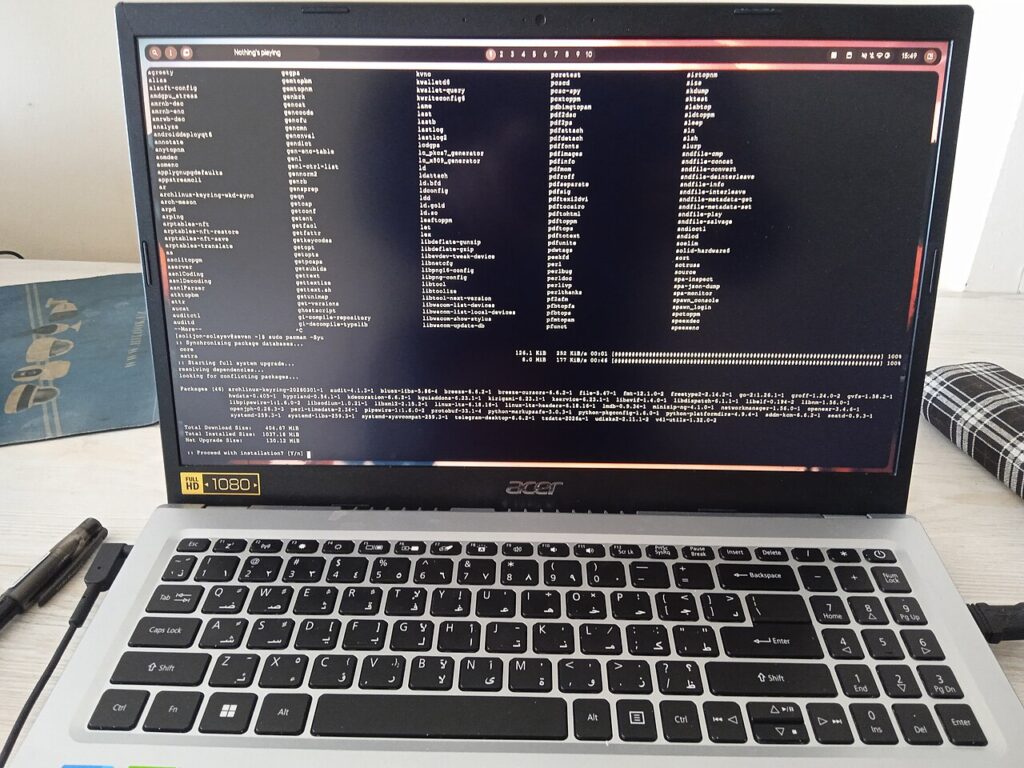
Running out of disk space on Linux can feel more dramatic than it really is. Updates start complaining, screenshots stop saving, and suddenly you are afraid to touch anything in case the system breaks. The good news is that most space problems come from ordinary clutter, not some mysterious disaster hiding in the operating system.
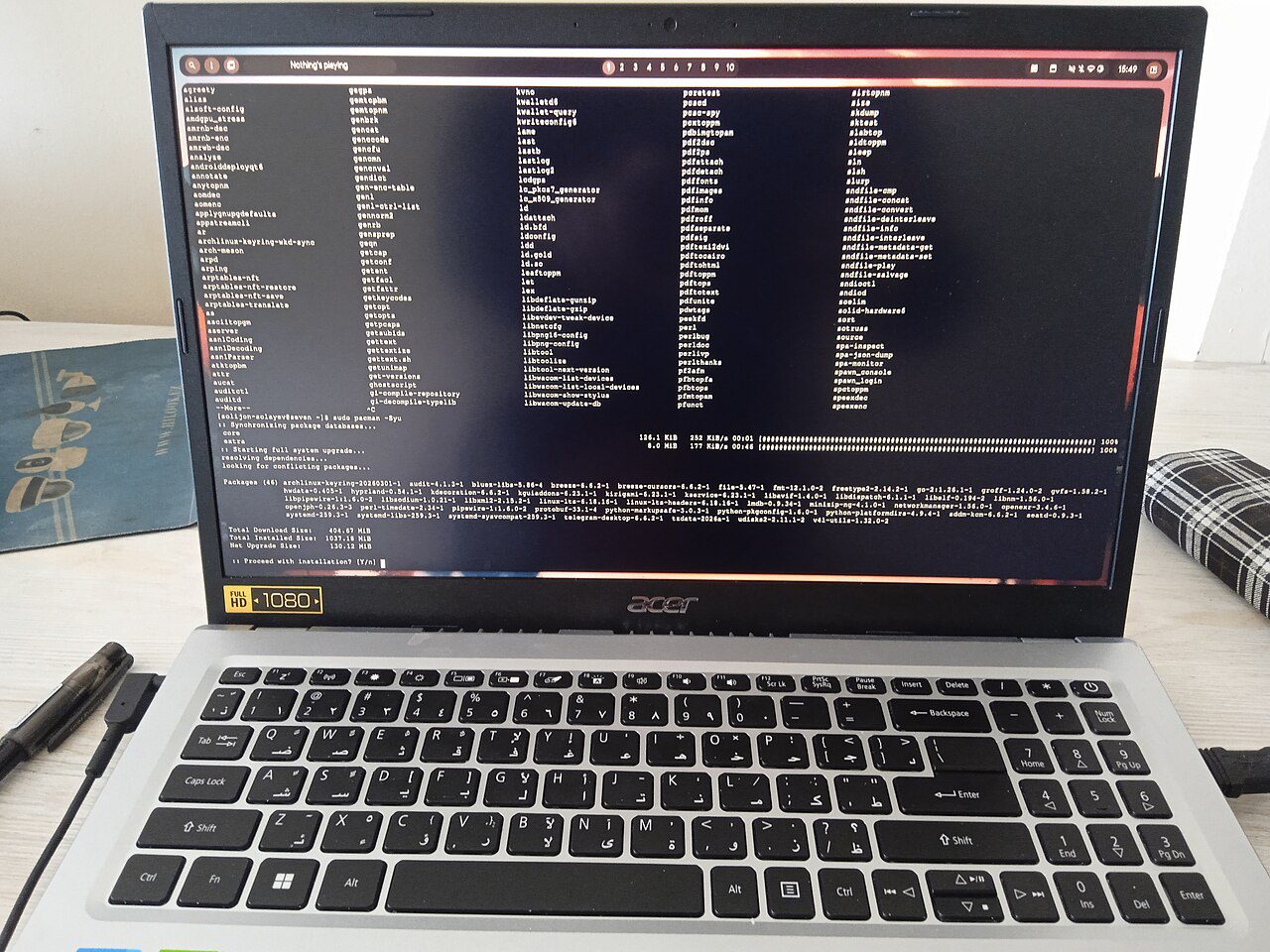
A calm linux disk cleanup starts with observation, not deletion. You want to learn where the space went, clean the safest places first, and avoid the beginner mistake of attacking system folders without understanding what lives there. That approach gives you back room without creating a second problem.
Linux disk cleanup begins with finding the big folders
Open your file manager and check Downloads, Videos, and any folder where you save project files. People often assume Linux itself ate the disk, but the real culprit is usually a forgotten ISO, an old virtual machine image, or a folder full of repeated exports. Start with your own files because they are the easiest to judge and the safest to remove.
If you are comfortable with the terminal, use a simple disk usage command or a graphical analyzer to see what is large before you delete anything. The goal is to make one informed pass instead of fifty random guesses. When you know which folder is bloated, cleanup becomes boring in the best possible way.
Clear package caches and old updates safely
Package managers keep cached downloads so installs and upgrades can work smoothly. Over time, those caches can become surprisingly large. On beginner systems especially, cleaning package caches is one of the safest ways to recover space because you are removing leftover installers, not your live applications.
The key word is safely. Use the package manager tools designed for cleanup instead of manually deleting files from system directories. Those built-in cleanup commands understand what can go and what should stay. If you like practical maintenance routines, our startup apps cleanup guide shows the same principle on Windows: remove leftovers with the right tool, not brute force.
- Delete duplicate downloads and outdated ISO files first.
- Use your distro’s cache-clean command instead of deleting package folders by hand.
- Reboot once after a large cleanup so temp files and updates settle properly.
Review logs, trash, and old app leftovers
System logs can grow, especially on a machine that has been running for a long time or has repeated errors. Application trash folders and browser download leftovers also add up more than people expect. Emptying the trash, pruning old archives, and removing app leftovers you recognize can free several gigabytes without any risk to your boot files.
Flatpak, Snap, Docker, and virtual machine tools can also leave behind old images or runtimes. These are worth checking because they are famous for being useful and bulky at the same time. The right habit is to uninstall what you no longer use and then run the platform’s own cleanup method so unused layers do not keep camping on your drive.
Keep linux disk cleanup small and regular
The safest cleanup rhythm is not a once-a-year purge when the drive is already full. It is a quick monthly review. Spend ten minutes checking downloads, caches, and old media exports before space becomes urgent. Small maintenance sessions protect you from rushed decisions like deleting a system folder you only half understand.
Linux rewards calm habits. If you pair regular cleanup with a backup plan, you can experiment without fear. After your first pass, note how much space came back and which folders were the worst offenders. Next month, those are the only places you need to check first, and the whole process becomes much faster.
A useful rule for beginners is simple: clean what you created first, then use official cleanup tools for what the system created. That keeps your linux disk cleanup effective and low risk.
When you want more beginner-friendly routines that save time instead of creating chores, visit tips-tricks.net for more practical walk-throughs.