USB flash drive tips sound old-school until the day you lose a client file, a tax document, or a stack of photos because a tiny drive was used carelessly. Flash drives are still useful for quick transfers, printer jobs, travel backups, and moving files between machines that do not share the same apps. The problem is that people treat them like magic pockets instead of fragile little storage tools.
A flash drive can be convenient and reliable, but only if you keep it organized and handle it properly. Otherwise, you end up with folders named “new” and “new2,” duplicate files, or a drive that works on one computer but throws errors on another. A few habits solve most of those problems before they start.
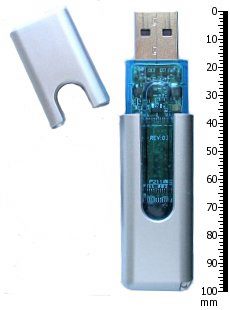
USB flash drive tips that matter most
The first tip is simple: name your folders clearly. Use dates, project names, or obvious categories. “August invoices” beats “stuff.” A flash drive is small enough to become chaotic very quickly, and once it does, people tend to drag more random files onto it instead of cleaning it up.
The second tip is to keep only copies of important files, not the only copy. A flash drive is great for moving data, but it should not be the sole home for something that would ruin your week if it disappeared. Keep the original on your computer, a cloud account, or an external backup too. Think of the flash drive as a messenger, not a vault.
The third tip is to eject it properly. It is boring advice, but it matters. Microsoft still recommends using the Safely Remove Hardware feature in Windows when appropriate, especially if a file transfer just finished. Pulling the drive too early is a good way to corrupt the file you thought was already saved.
Pick the right format before problems start
Formatting is where many flash drive headaches begin. If you move between Windows and Mac, exFAT is often the friendliest option because both systems support it well for normal file transfers. Apple explains common file systems in its Disk Utility file format guide, and it is worth reading once before you reformat a drive in a hurry.
It also helps to separate the drive by purpose. If one flash drive is mainly for printer files, keep it that way. If another is for travel backups or presentation decks, label it clearly and avoid mixing it with family photos, tax files, and random downloads. A drive with one clear job is much easier to trust than a drive that tries to carry your whole digital life.
Another good habit is copying files onto the drive, then opening one or two of them directly from the drive before you leave the house. That tiny check confirms the transfer actually worked and that you did not move an empty shortcut, the wrong version, or a file the other computer cannot open.
That said, do not reformat a drive just because it acts oddly once. First copy off anything important, test it on another port or computer, and see whether the issue is the drive, the file system, or the machine itself. Reformatting is a reset button, not a first-aid kit.
If you regularly pass files between your phone and your computer, our guide on sharing files between iPhone and Windows is another useful read. Different tools, same idea: clean handoffs beat messy improvisation every time.
Small habits that keep flash drives useful
Label the drive physically if you own more than one. Keep a tiny text file at the top level that explains what belongs on it. Delete installers and duplicates after you finish a job. And if the drive holds sensitive files, encrypt the contents or at least avoid leaving it loose in a bag where it can vanish quietly.
I also like to do a quick quarterly check. Plug the drive in, confirm it still mounts, open a few files, and make sure nothing critical is trapped there by accident. This takes two minutes and saves a lot of future regret.
If a flash drive starts disconnecting randomly, slows to a crawl, or becomes read-only without warning, treat that as a warning sign instead of an inconvenience. Move the files off while it still responds. Tiny storage devices often give you a little notice before they fully fail, and it is smart to take the hint.
For more practical tech housekeeping, browse the Tips-Tricks homepage. Good storage habits are rarely glamorous, but usb flash drive tips like these make removable media much less annoying and much more dependable.