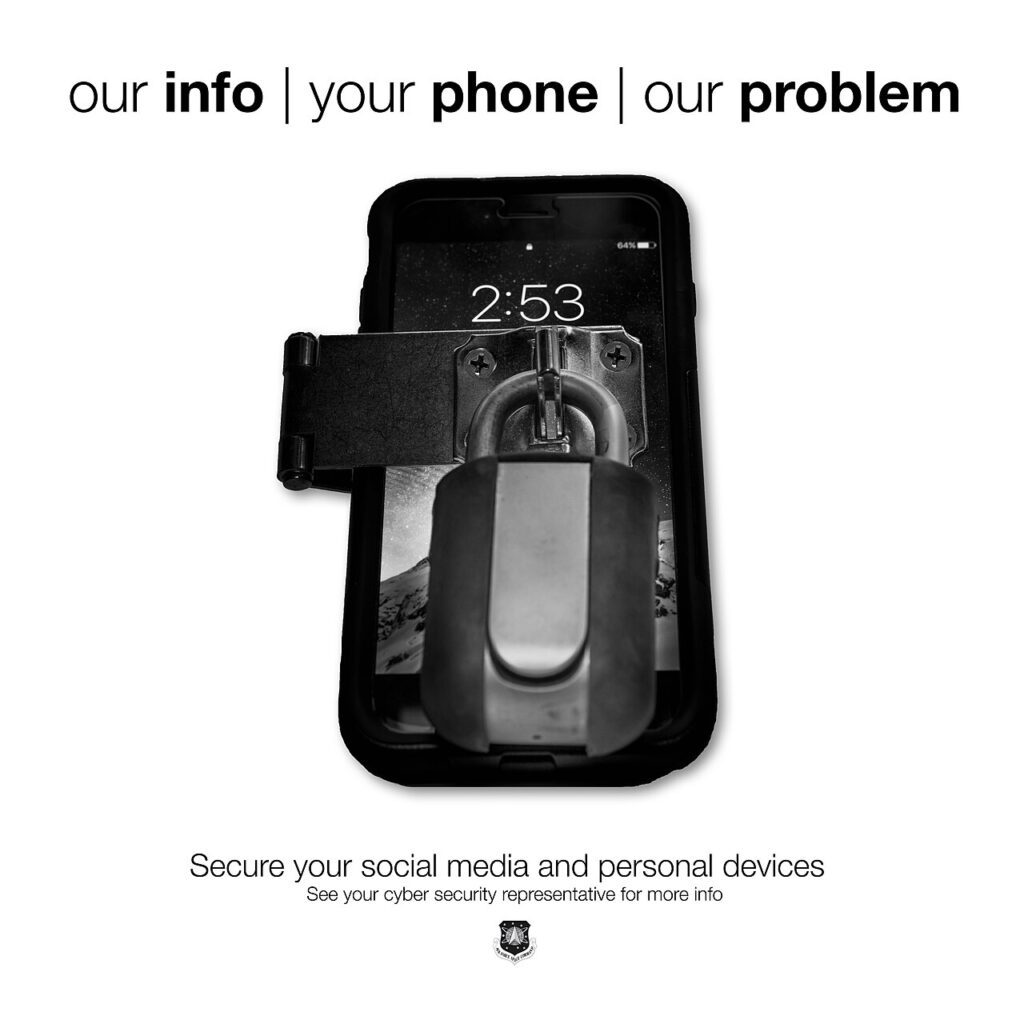
Password manager tips can feel boring right up until the day you need one login and cannot remember whether you used your pet’s name, a random keyboard smash, or that same password you promised yourself you would stop reusing. A password manager fixes that mess fast. It stores strong, unique logins, fills them when you need them, and takes a lot of pressure off your memory. If you have avoided one because it sounds technical, start here. These are the password manager habits that make daily life easier without turning security into a full-time hobby.

Password manager tips for choosing your first vault
Pick a manager you will actually keep using. That usually means it works well on your phone and laptop, supports autofill in your browser, and has a clean recovery process if you lose a device. Do not chase advanced features first. The basics matter more: end-to-end encryption, cross-device sync, support for long unique passwords, and a setup flow that does not make you want to quit halfway through.
Before importing anything, create one strong master password you can remember without writing it on a sticky note. A short passphrase built from unrelated words is easier to keep in your head than a tiny string full of symbols. Turn on two-factor authentication for the password manager account itself too. That extra step matters because the vault protects everything else.
If you want a second opinion before choosing, read the official guidance from CISA and the security advice from the FTC. Then stop comparing twenty options and pick one good tool.
Import old logins without importing old bad habits
Most people start with a browser full of saved passwords and duplicate accounts. Import them, but treat that import as a draft, not a finished system. Browser-stored logins are convenient, yet they often contain weak passwords, outdated sites, and old accounts you no longer use.
After the import, sort your vault into three quick passes. First, delete obvious junk: dead shopping sites, duplicate entries, and accounts you closed years ago. Second, change the passwords for your email, banking, cloud storage, and social accounts. Third, note which entries still need cleanup and chip away at them over the next week instead of trying to fix everything in one night.
This is also a good moment to remove old passwords from your browser once you trust the manager. Keeping two messy systems side by side makes confusion more likely. One clean vault beats three half-updated places.
Password manager tips for everyday use on phone and desktop
The best setup is the one that disappears into your routine. Install the browser extension on the computer you use most. Enable system autofill on your phone. Then practice with low-stakes logins first, like news sites or forums, before relying on it for work accounts and payments.
Use the generator every time you create a new account. Let the manager create long, random passwords, and do not try to make them memorable. That is the whole point. Save secure notes only for things that belong there, like Wi-Fi details, software license keys, or recovery codes. Do not turn the vault into a general note app where important details get buried.
One small habit helps more than people expect: rename entries clearly. Instead of three items called “Google” or “Shop”, label them in a way that makes sense at a glance. Future you will thank you when a site asks for a login and you can spot the right entry instantly.
Use sharing and emergency access carefully
Password managers make sharing safer, but safer does not mean careless. If your manager offers a family or shared vault, use it for joint accounts such as utilities, streaming services, or a household travel folder. That is better than texting passwords back and forth or leaving them in an old email thread.
Check what the other person can do with the shared item. Some tools let someone use a login without revealing the actual password. That is useful for reducing risk. If the manager supports emergency access, set it up with one trusted person and review the waiting period. This feature is worth a few minutes now because it becomes very important during a real emergency.
For more practical digital-organization habits, visit the Tips & Tricks homepage and also read Browser Privacy Tips That Go Beyond Extensions and iPhone Privacy Settings You Should Change Today.
Review your vault once a month
A password manager is not a set-it-and-forget-it tool. Spend ten minutes each month checking password health alerts, updating reused passwords, and removing accounts you no longer need. Start with the accounts that could do the most damage if someone got in: email, bank, cloud storage, shopping sites with saved cards, and work logins.
If you ever get a breach alert, change that password inside the manager immediately and let the tool generate a new one. Then look at similar accounts and make sure you did not reuse the old password anywhere else. The cleanup is much faster when the vault already holds everything.
These password manager tips do not ask you to become a security expert. They just help you replace guesswork with a system. Once the vault is in place, signing in gets easier, your passwords get stronger, and one small habit quietly removes a lot of daily friction.