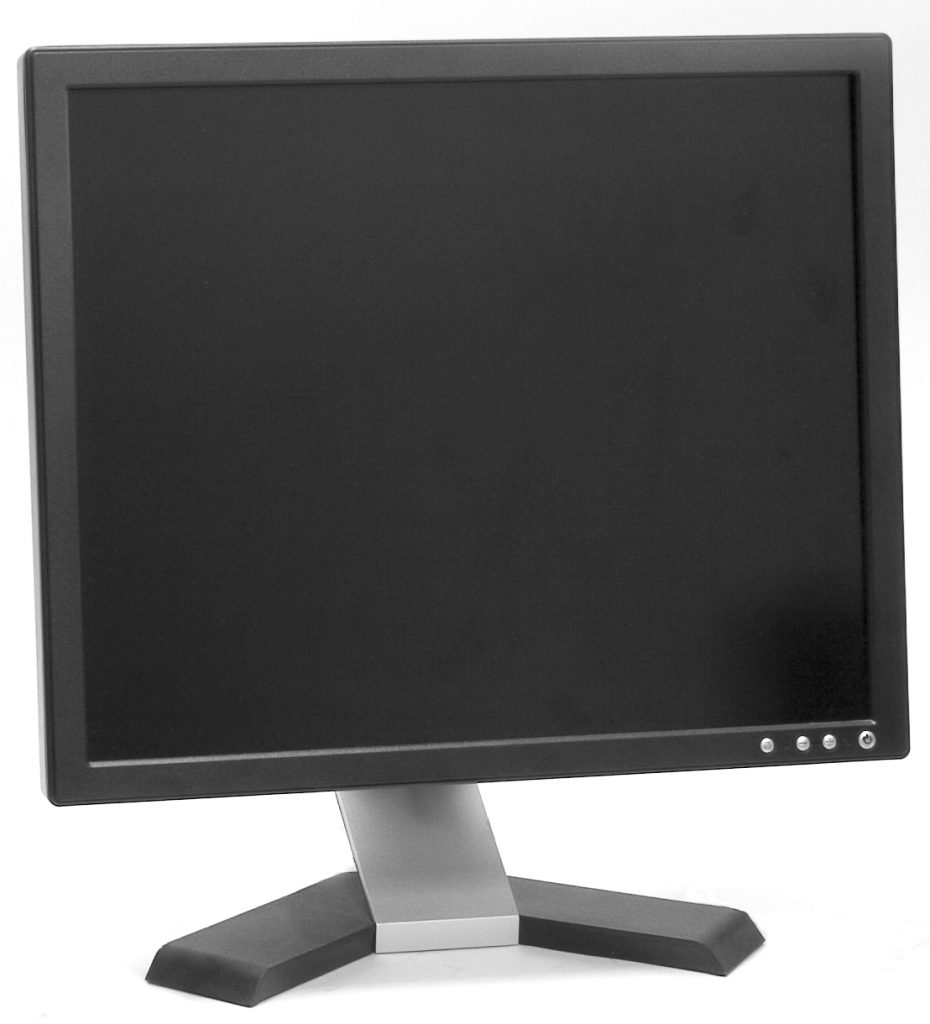
Two screens change how you work more than most upgrades, and you do not need a new computer to get them. Adding a second monitor at home is mostly about checking which ports you have, choosing the right cable and arranging the screens so your neck is not turned all day. This is the practical order to do it in.
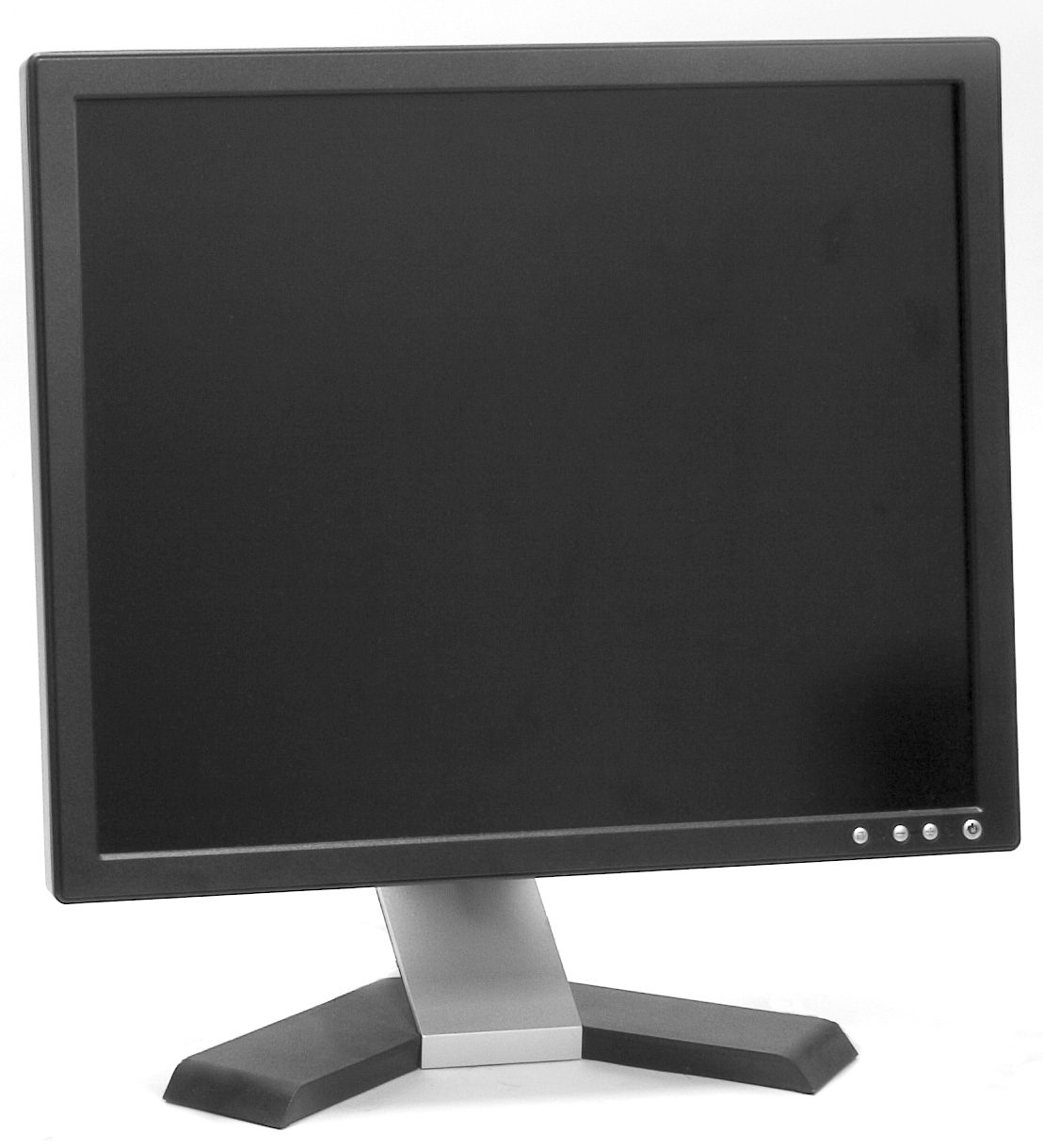
Check what your laptop can actually drive
Look at the ports on the machine before you buy anything. A modern laptop usually has USB-C with video support, some have a full-size HDMI socket, and older ones have DisplayPort or VGA. The port type decides the cable, and the cable decides whether the screen works at all.
- HDMI: the simplest option, one cable, no adapter.
- USB-C with video: needs a cable that explicitly supports video, not just charging.
- Older laptops: check whether the port is output only, and expect an adapter.
If the laptop has only one video output and you want three screens, you will need a dock rather than more adapters. Chaining cheap splitters produces mirrored images instead of separate desktops.
Pick a size and resolution that fit the desk
Measure the desk before choosing. A 24-inch 1080p screen is comfortable at about an arm’s length and is the cheapest sensible upgrade. A 27-inch screen at 1440p gives noticeably sharper text and is worth the extra if you read documents all day. Beyond that you are paying for space you may not have.
Matching the resolution of the laptop screen is not essential, but wildly different pixel densities make text jump between screens in a way that is tiring to read.
Place the Second Monitor at the right height
Set the external screen directly in front of you and keep the laptop slightly to one side, angled in. Put the top of the external screen at about eye level, using a stand or a stack of books if needed. The most common mistake is placing the new screen off to the far side, which leaves you turning your head all day.
Quick ergonomics checklist
- Screen top roughly level with your eyes.
- About an arm’s length away, close enough to read without leaning in.
- Keyboard and mouse in front of the main screen, not the laptop.
- No window glare directly behind or in front of the panel.
Set it up in the operating system in two minutes
On Windows, open display settings and choose extend rather than duplicate. Drag the screen icons so they match the physical arrangement on your desk, otherwise the mouse will move in a direction that feels wrong. Set the external screen as the main display if it is the one in front of you.
On a Mac, open display settings, arrange the screens by dragging, and decide whether you want the menu bar on the external display. Turn off mirroring, which is the default on many setups and the reason people think a second screen “does not work”.
Fix the small annoyances early
Scaling is the usual complaint. If text on the external screen looks huge or tiny, adjust the scale for that display only, leaving the laptop screen as it was. If the picture is blurry, check that the cable supports the resolution you selected, because a cheap adapter often caps out at a lower mode.
Laptop-only users should also set the machine not to sleep when the lid closes, at least while plugged in. Otherwise the external screen goes dark the moment you shut the lid, which defeats the purpose of the setup.
Keep the desk usable
Route the video cable and the charger behind the desk with a couple of clips so the surface stays clear. A single cable from the laptop to a hub, if you use one, makes it easy to unplug and take the machine with you without disturbing the arrangement.
A second monitor is one of the few upgrades that pays for itself in comfort. Start with the ports you have, buy one good cable, and spend the saved money on a stand that puts the screen at eye level.
If you often work away from the desk, the laptop travel setup checklist covers the portable version of this setup, and improving your video call setup at home explains how the screen position affects camera framing. Cable clutter is easier to solve with the method in organizing cables and chargers at home. More desk guides are on the tips-tricks.net homepage.